Back up your way
Save a full copy or capture changes. Choose Full, Smart or Rolling and a retention policy that fits your files.
Explore backup modes
A little peace of mind.
Keep a history of your important files, and a way back from accidental edits and deletions.
Other ways to download01 / GET STARTED
Make your first backup, test a restore, then set up a routine that works for you.
02 / IN THE APP
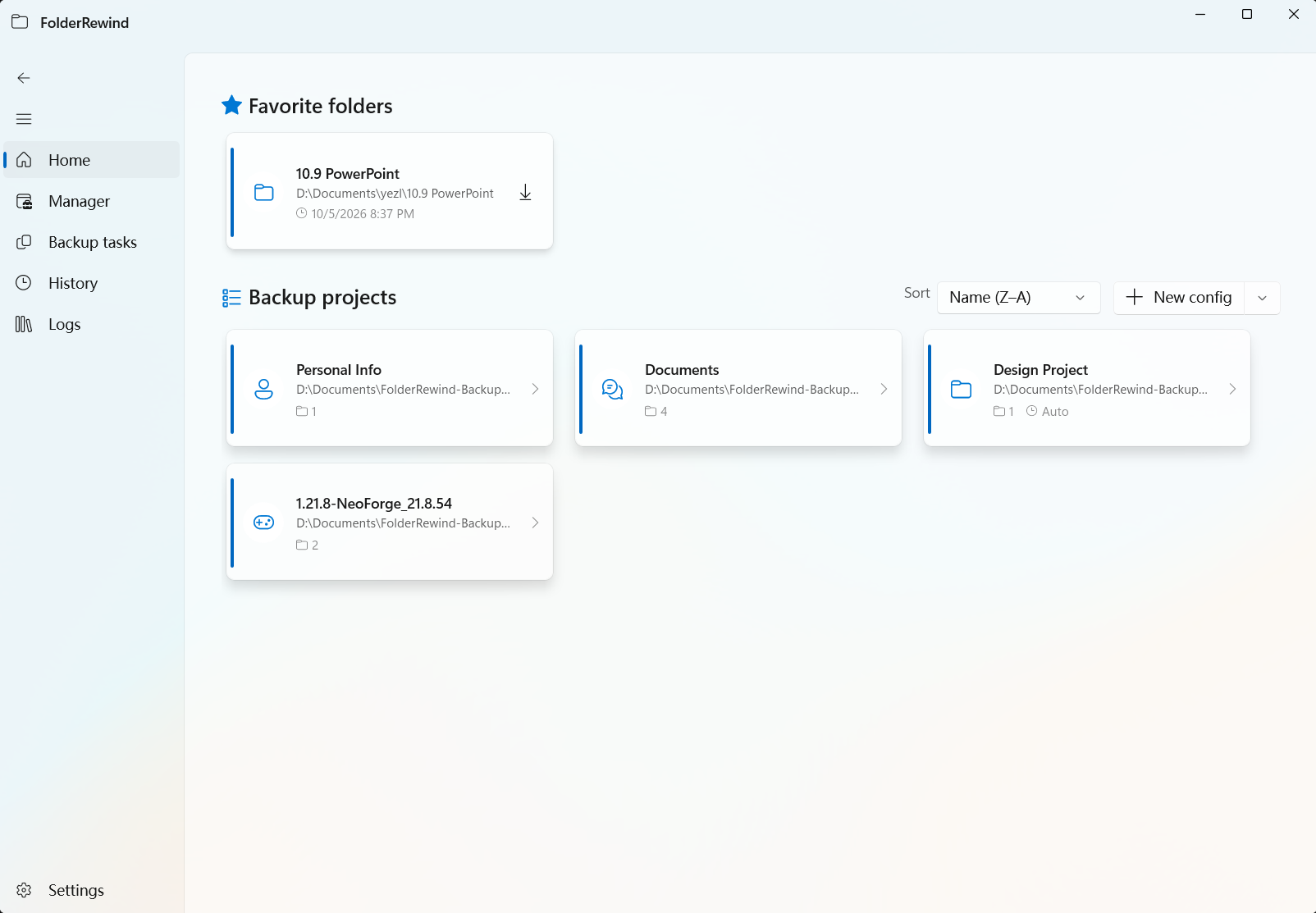
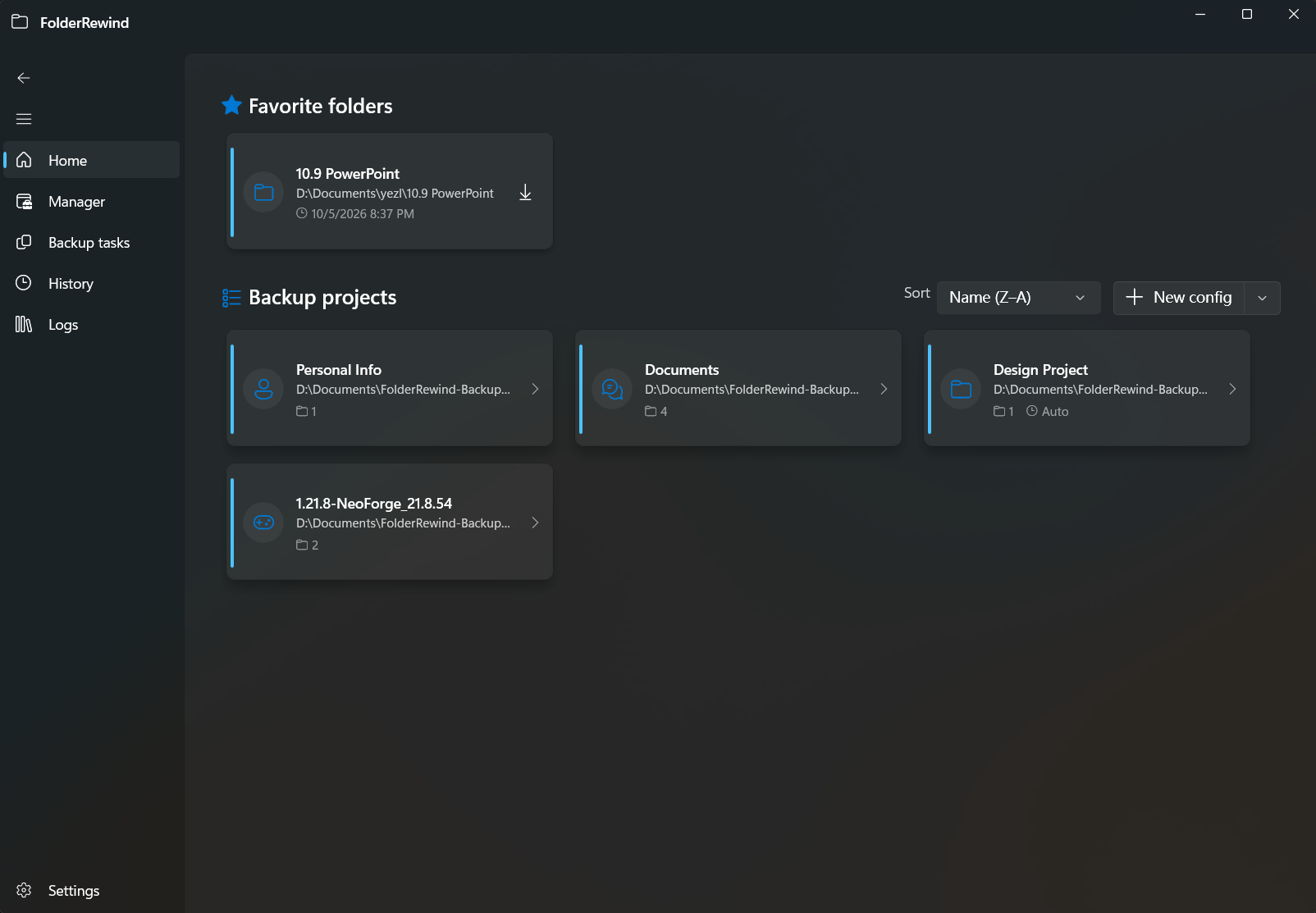
Organize projects, browse their history and review a restore in a familiar Windows interface.
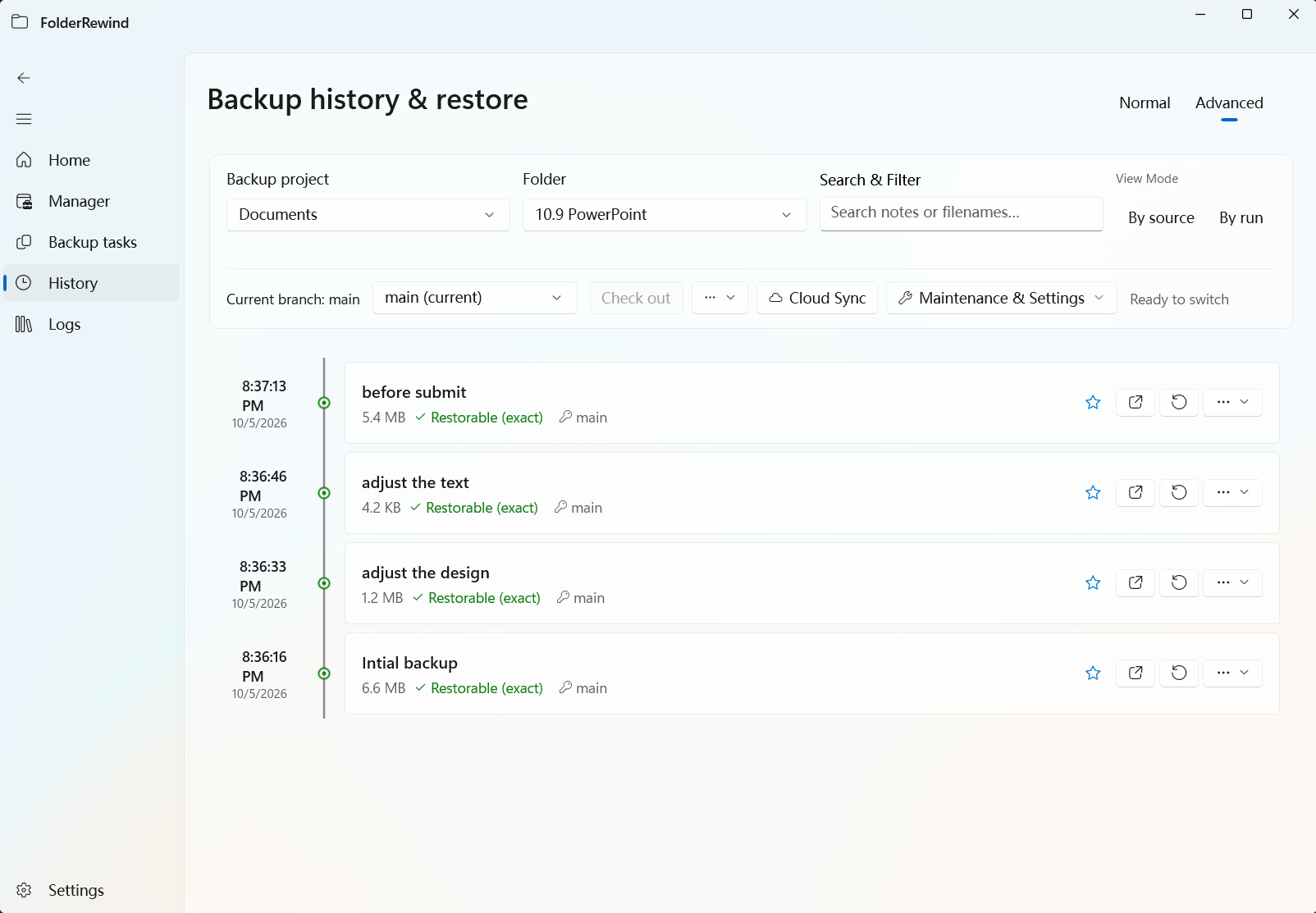
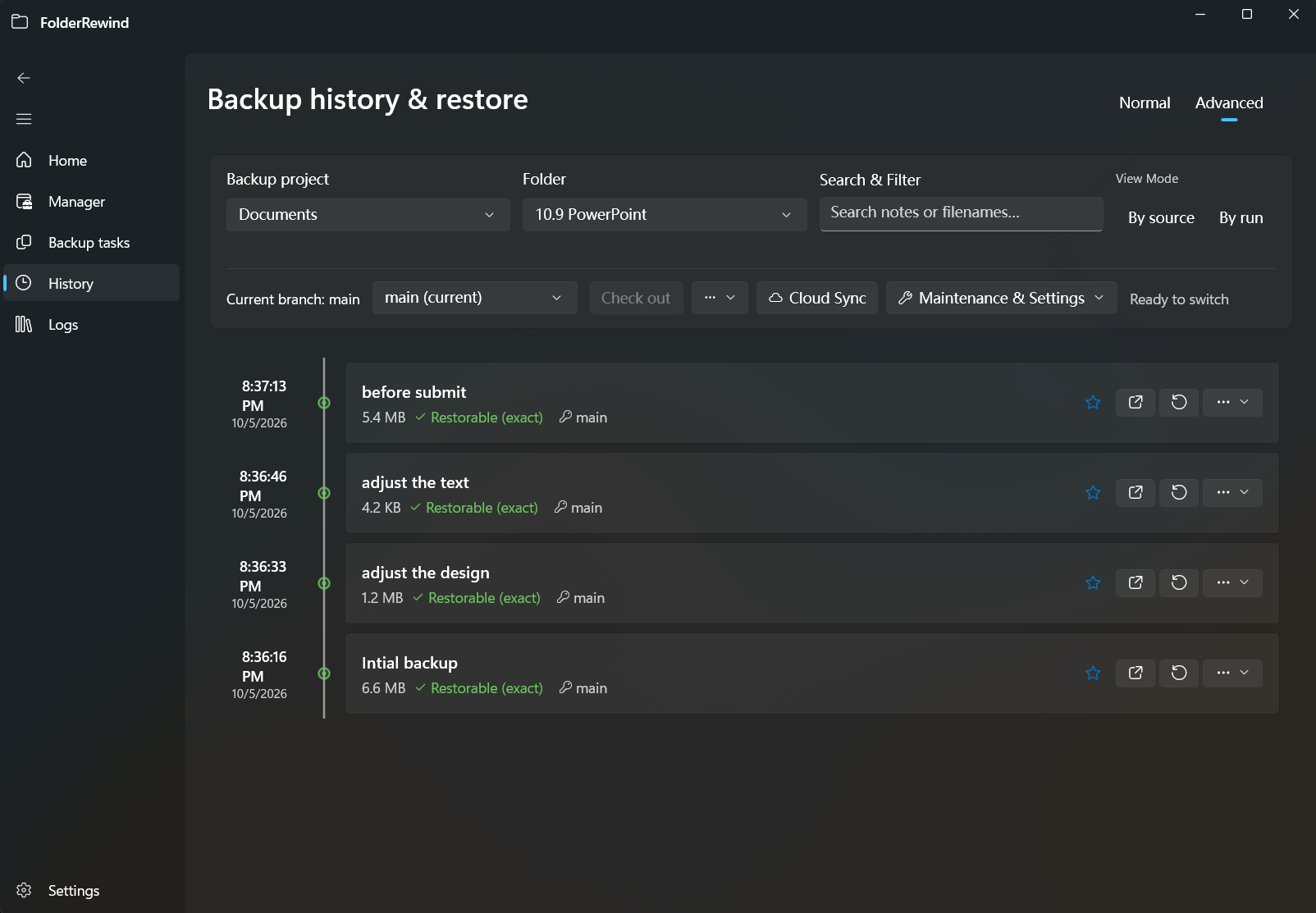
Review versions, notes and restore status to find the point you want to return to.
Read the guideInterface captures: 1.9.4
03 / THE ESSENTIALS
Make protecting your files part of your everyday workflow.
Save a full copy or capture changes. Choose Full, Smart or Rolling and a retention policy that fits your files.
Explore backup modesOrganize history with versions, branches and recovery points. Check destinations and protection options before restoring.
Explore history and recoverySchedule backups or set conditions, and use tools such as rclone to keep cloud copies in your own storage.
Set up automation Explore cloud archives04 / GO FURTHER
Keep a history of your worlds. Minecraft hot backup and restore require the corresponding plugins or mods.
Explore MinecraftConnect apps, games and automation through the independent plugin SDK and KnotLink.
Read the developer docs05 / MAKE A START
Start with your first backup today.
Windows 10 1809+ / Windows 11
Available for x64 / ARM64