Backup Modes

FolderRewind provides three core backup modes powered by the 7-Zip engine: Full, Smart Incremental, and Overwrite.

:::caution Upgrade compatibility note If you upgraded from an older version, revalidate backup chains and restore results with test data before using them in production. :::

Quick recommendation

  • Beginner default: Full Backup + enable "Skip when no changes"
  • Frequent daily use: Smart Incremental + chain limit + safe delete
  • Temporary rolling state: Overwrite (keep only the latest archive)

Mode comparison

ModeDescriptionAdvantageBest for
FullCreates a complete new archive every timeSimple and stable restoreBeginners, milestones
Smart IncrementalPacks only changed files and builds an improved incremental chainFaster, saves spaceLarge folders with frequent backups
OverwriteUpdates the latest archive instead of creating many history filesMinimal storage, simple workflowTemporary sync or cache-like folders

:::note Note "Smart Incremental" in product wording corresponds to Incremental/Smart behavior in code.

Across major updates, chain generation, truncation, and restore behavior may change, so upgraded configs should always be revalidated once. :::

How to configure

  1. Open Config Settings for the target config.
  2. Go to Backup Policy.
  3. Select mode from Backup Mode:
    • Full backup (new file each run)
    • Smart incremental (changed files only)
    • Overwrite backup (update latest backup)
  4. Save and run one manual backup for validation.

Backup mode dropdown with Full, Smart Incremental, and Overwrite options

Backup Policy tab showing scope, archive format, and compression level

Choosing tips

  • Minecraft saves: Smart Incremental (saves more space for large, frequently backed up folders)
  • Work docs/projects: Smart Incremental or Full (based on disk and restore preference)
  • Important archives: Full + encrypted config
  • Temporary/cache folders: Overwrite

In Config Settings -> Backup Policy, also check:

  • Skip backup when no changes: avoids creating meaningless backups.
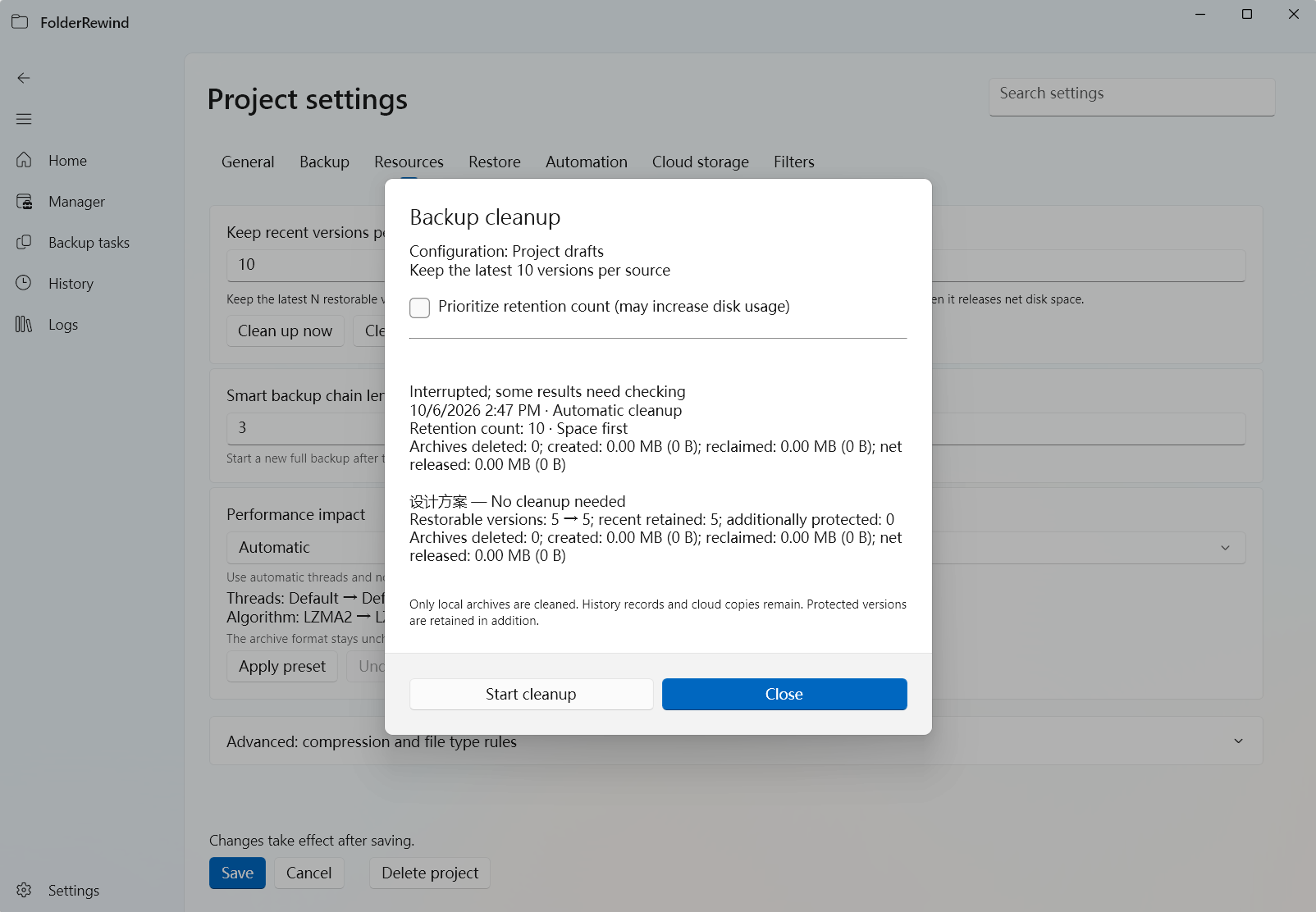
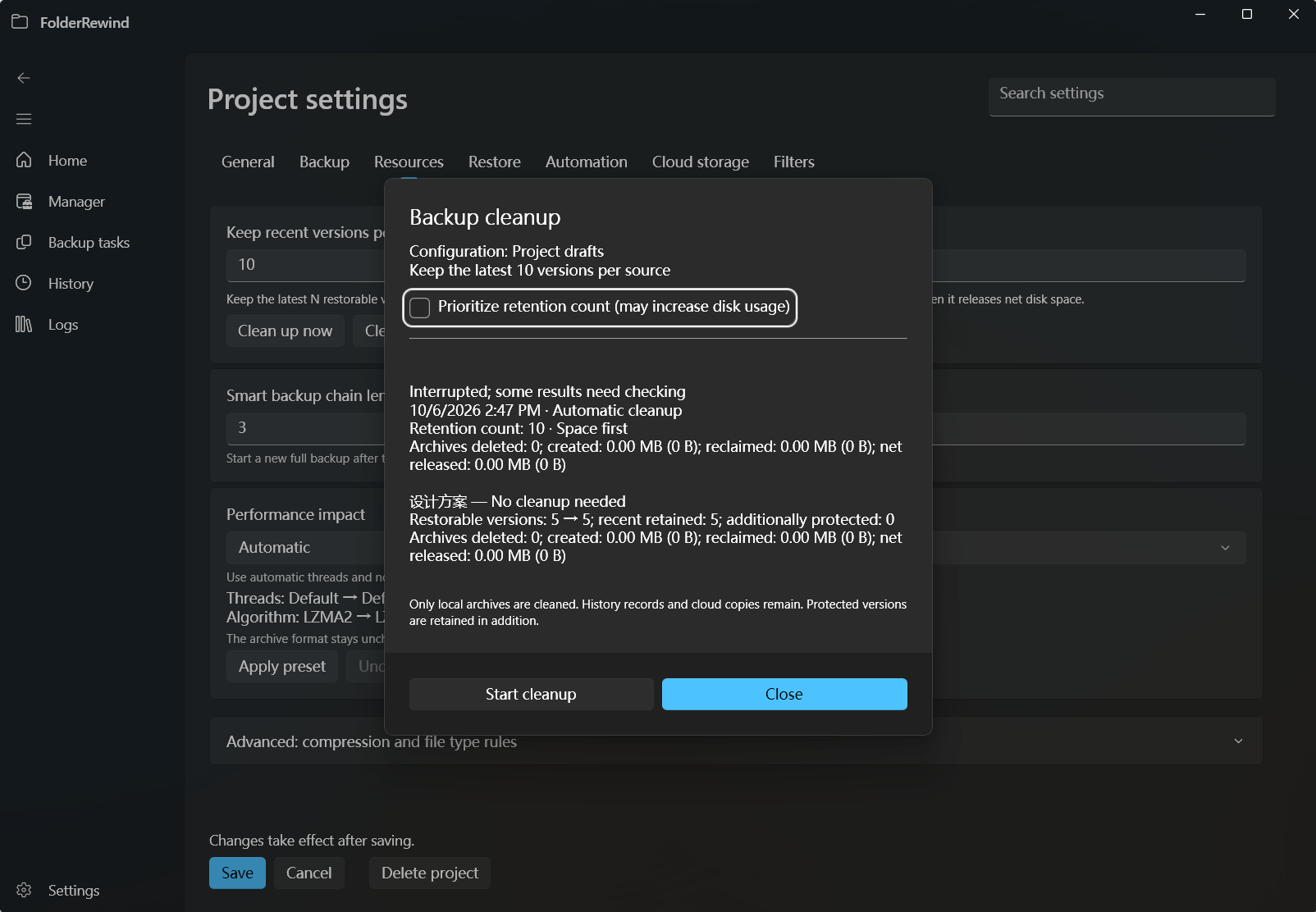
  • Keep latest backup count: 0 means unlimited.
  • Smart chain length limit: only applies to Smart Incremental; triggers a Full backup to truncate the chain when the threshold is reached.

Chain truncation behavior:

When the number of backups in a smart incremental chain reaches MaxSmartBackupsPerFull (default 5), the next backup automatically switches to Full, creating a new baseline. The old chain is not deleted, but new backups no longer depend on it.

Benefits:

  • Controls the length of the restore chain, avoiding the need to merge too many incremental packages during restore

  • Limits the blast radius if an incremental chain breaks

  • Safe delete: helps avoid broken restore chains during cleanup of incremental archives.

  • Remote forced full backup: in automation/integration scenarios, you can temporarily bypass the current mode and run one Full backup via a remote command.

Compression and performance

FolderRewind supports 7z/zip compression with tunable level, method, and threads:

  • Compression level: higher = smaller size but slower speed.
  • CPU threads: 0 means automatic; limit threads if performance is insufficient.
  • File-type rules: use lower compression for already-compressed files like *.zip/*.mp4 to reduce processing time.
    • Note: enabling file-type rules automatically disables 7z solid compression, because solid compression requires all files to use the same compression settings, while file-type rules allow different levels for different files.
  • Low-priority compression: enabling RunCompressionAtLowPriority lowers the CPU priority of the compression process, so it does not interfere with other tasks running during backup.

Performance presets (1.8)

Each performance preset controls both compression thread count and process priority:

PresetCPU threadsLow priorityBest for
Automatic0, decided by 7-ZipNoDefault choice, prioritizing completion speed
LightHalf of logical processors, minimum 1YesContinuing normal work during backup
Very LightAt most 2, minimum 1YesForeground apps or games sensitive to responsiveness
CustomKeeps the manual valueKeeps the manual valueDedicated configurations that have been benchmarked

The effective thread count for Light depends on the processor. After changing a preset, save the configuration and use a real backup to observe duration, CPU load, and archive size.

Additional 7-Zip arguments

FolderRewind 1.8 accepts additional 7-Zip arguments for advanced scenarios. They apply only when creating or updating backup archives. They are not passed to test, list, extract, or restore operations.

To preserve FolderRewind's control over the command and its output, these categories are rejected:

  • Bare operation commands such as a and u.
  • External list files such as @listfile.
  • Arguments that change the operation, archive format, or core compression settings, including -t, -mx, -m0, and -mmt.
  • Password, header encryption, output-directory, and confirmation controls such as -p, -mhe, -o, and -y.
  • Arguments that change progress output, include/exclude rules, or input sources, such as -bsp, -x, and -i.
  • Unclosed quotes or any input that cannot be parsed reliably.

Arguments are validated when the configuration is saved and again before backup execution. Invalid input rejects the operation instead of running with a partial argument set. Do not paste command lines from an untrusted source. Test archive creation and restore against disposable data after every change.

Restore rules for partial backups

When the backup scope is smaller than the complete source directory, the archive cannot rebuild that directory safely after clearing it. For example, with Minecraft Selected-Region Backup:

  • Normal restore and hot restore are forced to Overwrite.
  • Clean is disabled to avoid deleting files that were never backed up.
  • Packaged files are written back, but content outside the archive is not rewound to the same point in time.

Before enabling any partial backup for production data, use a copy to verify the file manifest, overwrite behavior, and application-level consistency. A partial backup reduces the protected scope; it is not a complete disaster-recovery plan.

Starter presets

  • General office files: Full + skip-no-change + keep 30
  • Dev projects: Smart Incremental + chain limit 20 + safe delete + keep 60
  • Large game saves: Smart Incremental + skip-no-change + automation + periodic restore validation