Cloud Archive Guide

This page is intentionally aligned with current FolderRewind implementation, not just generic rclone usage.

It focuses on three real product flows:

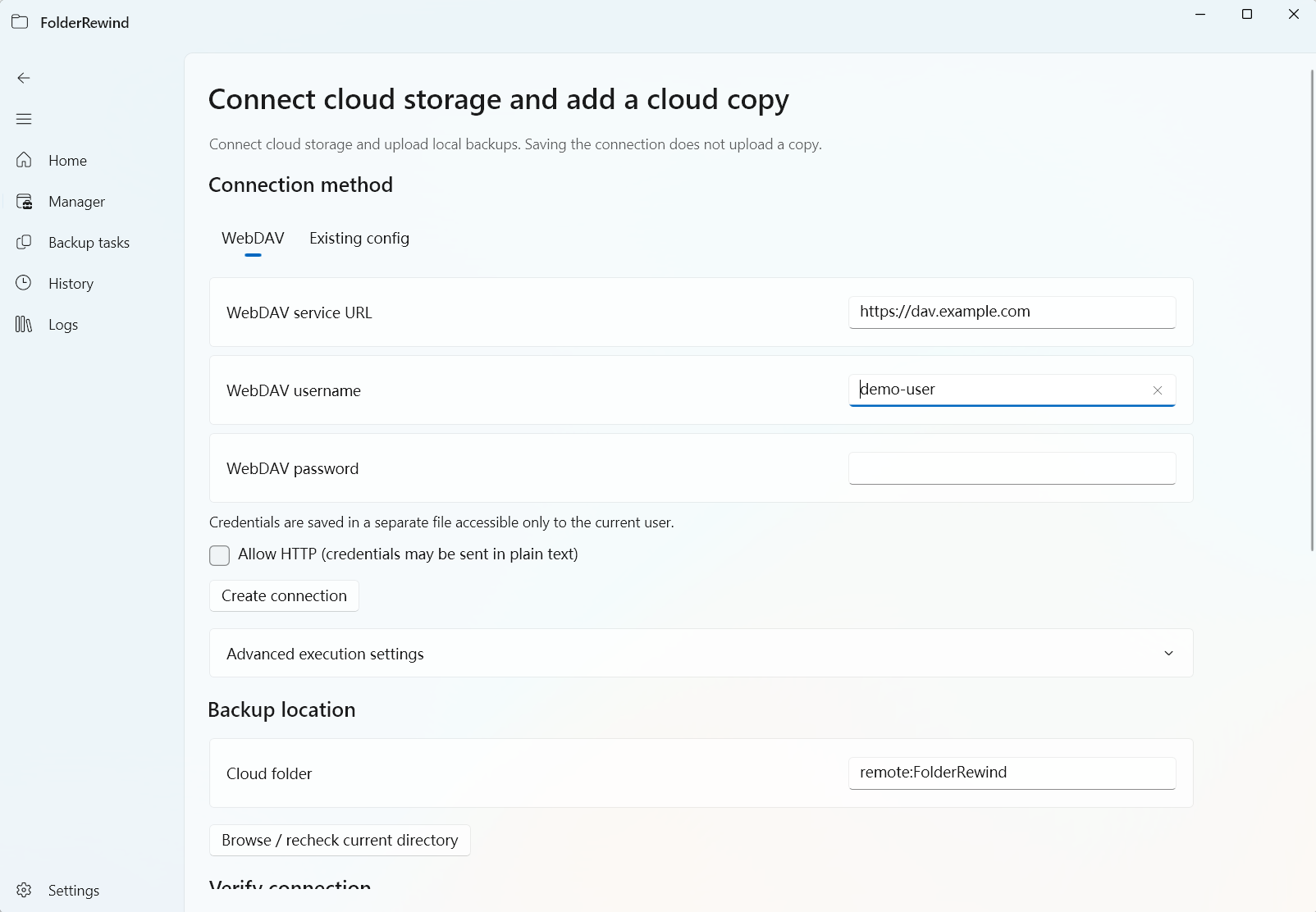
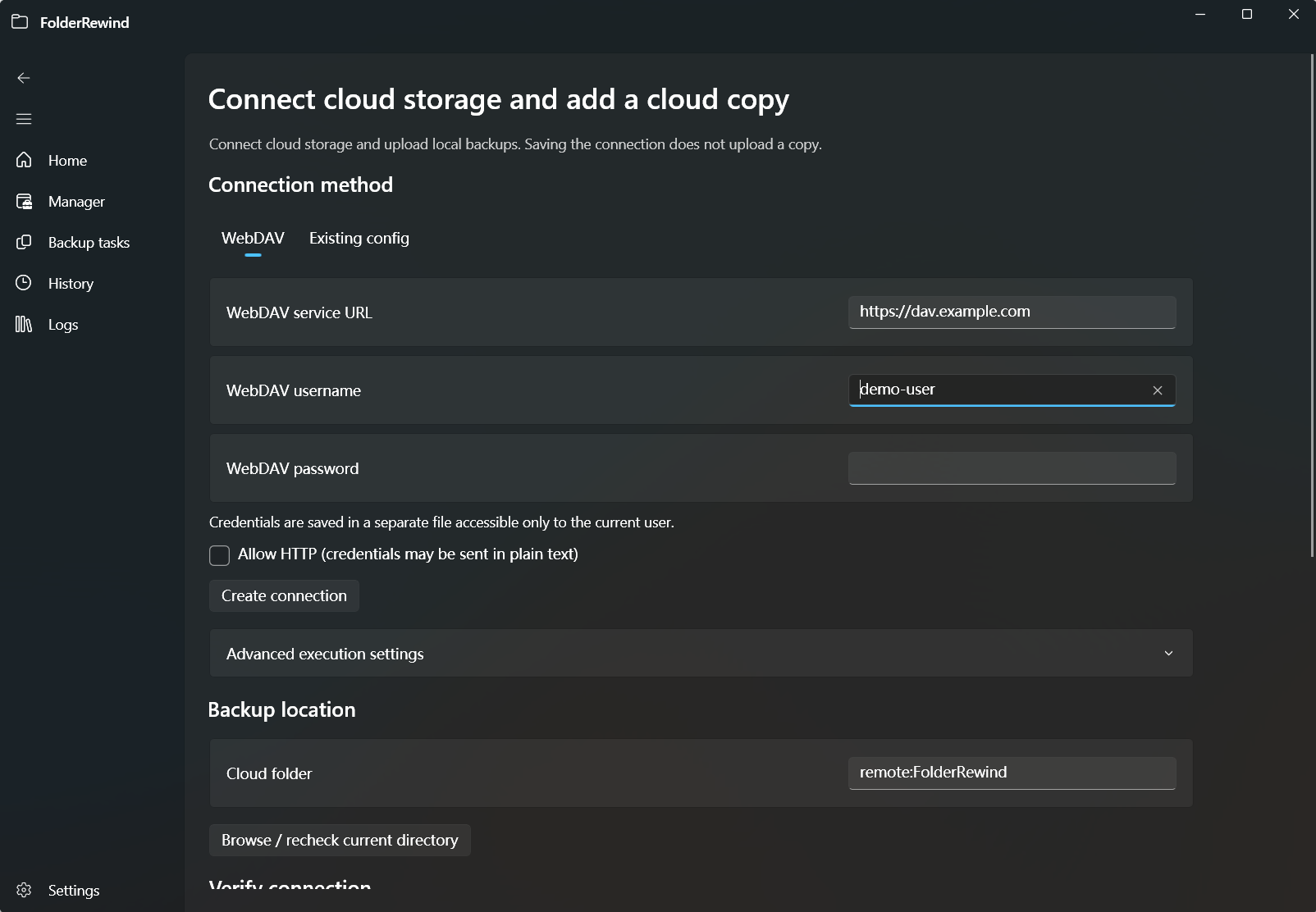
  • Config Settings -> Cloud tab
  • Config-level "Sync this config from cloud" dialog
  • History page per-item cloud upload/download

Starting in v1.7.0, FolderRewind cloud archive is a full workflow:

  • post-backup auto cloud upload (optional)
  • manual per-history upload/download in History page
  • config-level cloud sync with pre-analysis

1) Core model

Cloud archive in FolderRewind is a two-layer design:

  1. FolderRewind builds a restorable local backup chain
  2. rclone executes cloud transfer commands

Cloud is an extra redundancy layer, not your primary backup engine. Always validate local backup/restore first.

2) Remote data layout

Recommended remote base path format:

remote:FolderRewind

Effective cloud structure is:

{RemoteBasePath}/{ConfigName}/{FolderName}/
├─ [Full][...].7z / [Smart][...].7z / ...
└─ _metadata/
├─ state.json
└─ records/
└─ {ArchiveFileName}.json

{RemoteBasePath}/history.json

Notes:

  • archive and metadata are transferred separately
  • history.json is used for cross-device history analysis/import
  • metadata may be partial while archive transfer still succeeds

3) rclone initial setup (OneDrive example)

Download and install

  • Download: https://rclone.org/downloads/
  • Typical package: Windows amd64
  • Place rclone.exe in a stable folder (for example C:\Tools\rclone\)
  • Add that folder to PATH (recommended)

Validate:

rclone version

Run rclone config

Opening a command prompt from the rclone folder

rclone config

Typical flow:

  1. n for new remote
  2. Name it (example: fr_onedrive)
  3. Select OneDrive as storage
  4. Keep Client ID/Secret default for standard usage
  5. Keep advanced config default first
  6. Complete OAuth browser sign-in
  7. Select drive type and target drive
  8. Save and quit

Creating a new remote in rclone config

Validate remote:

rclone lsd fr_onedrive:

Suggested remote base path to use in FolderRewind:

fr_onedrive:FolderRewind

Key options in the OneDrive configuration flow

Confirmation screen after completing the OneDrive remote configuration

OpenList and WebDAV bridge references

For domestic storage providers such as Baidu Netdisk, OpenList can expose a WebDAV endpoint for rclone. The following screenshots preserve the original setup walkthrough.

OpenList showing the WebDAV address and account information after startup

Adding a Baidu Netdisk storage configuration in OpenList

Example result from obtaining an OpenList token

4) Global Settings prerequisites

Path: Settings -> Tools and Dependencies -> Environment

  • rclone path: global fallback runtime for cloud operations
  • default cloud remote base path: default for new configs and cloud import/export dialogs

Configure these first, then tune each config.

5) Config Settings -> Cloud tab (actual UI behavior)

Path: target config -> Config Settings -> Cloud

Environment section

  • Executable path: config-level override; default can fall back to global rclone path
  • Working directory (optional)
  • Remote base path

Cloud sync section (manual)

  • button: Sync this config from cloud
  • available in rclone mode

Auto upload switch

Switch: Enable upload after backup

This controls only post-backup automatic upload queueing.

Manual sync/history cloud actions are governed primarily by mode support (rclone vs legacy custom command).

Advanced upload section (visible when auto upload enabled)

Templates

  • Upload current archive (recommended)
  • Upload backup directory
  • Custom

Argument template and variables

Supported variables:

{ArchiveFilePath}
{ArchiveFileName}
{BackupSubDir}
{MetadataDir}
{ConfigName}
{ConfigId}
{FolderName}
{SourcePath}
{DestinationPath}
{BackupMode}
{Comment}
{Timestamp}
{RemoteBasePath}

Sync history snapshot after upload

Switch: Sync history after upload

When enabled, FolderRewind uploads latest history.json after successful backup upload.

Timeout/retry/last run status

  • timeout (seconds)
  • retry count
  • last run time / exit code / error summary

6) Config-level sync dialog details

Entry: Cloud tab -> Sync this config from cloud

Flow is "analyze first, then sync".

Analysis stage

FolderRewind downloads remote history.json and resolves safe mappings:

  1. exact match by ConfigId
  2. fallback to remote path prefix ({RemoteBasePath}/{ConfigName})
  3. map folder by:
    • exact FolderPath first
    • unique FolderName fallback
    • ambiguous name matches are skipped

UI shows:

  • matched remote entries
  • importable entries
  • unmapped entries
  • ambiguous entries

Sync scopes

  • History only: import mapped history entries (merge mode, duplicates skipped)
  • History + backups: import history, then pull archives + metadata for current config folders and recover local history

7) History page cloud integration

Path: History page

Each history row exposes:

  • Upload to cloud
  • Download from cloud

Status and visual cues

  • cloud icon appears when cloud copy metadata is available
  • status examples:
    • cloud copy available
    • cloud only copy available
  • cloud-only entries have dedicated timeline color

Button enable rules

  • Upload enabled when local archive exists
  • Download enabled when cloud copy path exists
  • Legacy custom-command mode disables history-page upload/download (rclone-only)

What upload/download actually does

Upload:

  1. upload archive first
  2. then upload metadata state/record files
  3. if metadata is partial, archive success is kept and warning is shown

Download:

  1. download archive to local backup storage
  2. then download metadata files
  3. metadata partial warning may still appear

Restore from cloud-only entry

Recommended sequence:

  1. click download from cloud first
  2. restore after local archive exists

8) Best practices

  • use "upload current archive" template for most scenarios
  • enable history snapshot sync for multi-device workflows
  • run one end-to-end drill after setup:
    • backup
    • cloud upload
    • cloud download
    • restore verification

9) Troubleshooting

History cloud buttons disabled

  • check if config is in legacy custom-command mode
  • upload disabled means local archive is missing
  • download disabled means cloud copy path metadata is missing

Analysis importable count is zero

  • remote history may not map to current config/folders
  • folder mapping ambiguity may block import
  • remote base path may be wrong

Metadata partial warning

  • archive transfer succeeded
  • metadata state/record transfer is partial
  • run another sync pass to complete metadata consistency