Manage folders and historical bindings
Choose a backup project in management to add sources, inspect status and run backups. Each source has a stable identity linking its current directory to history.
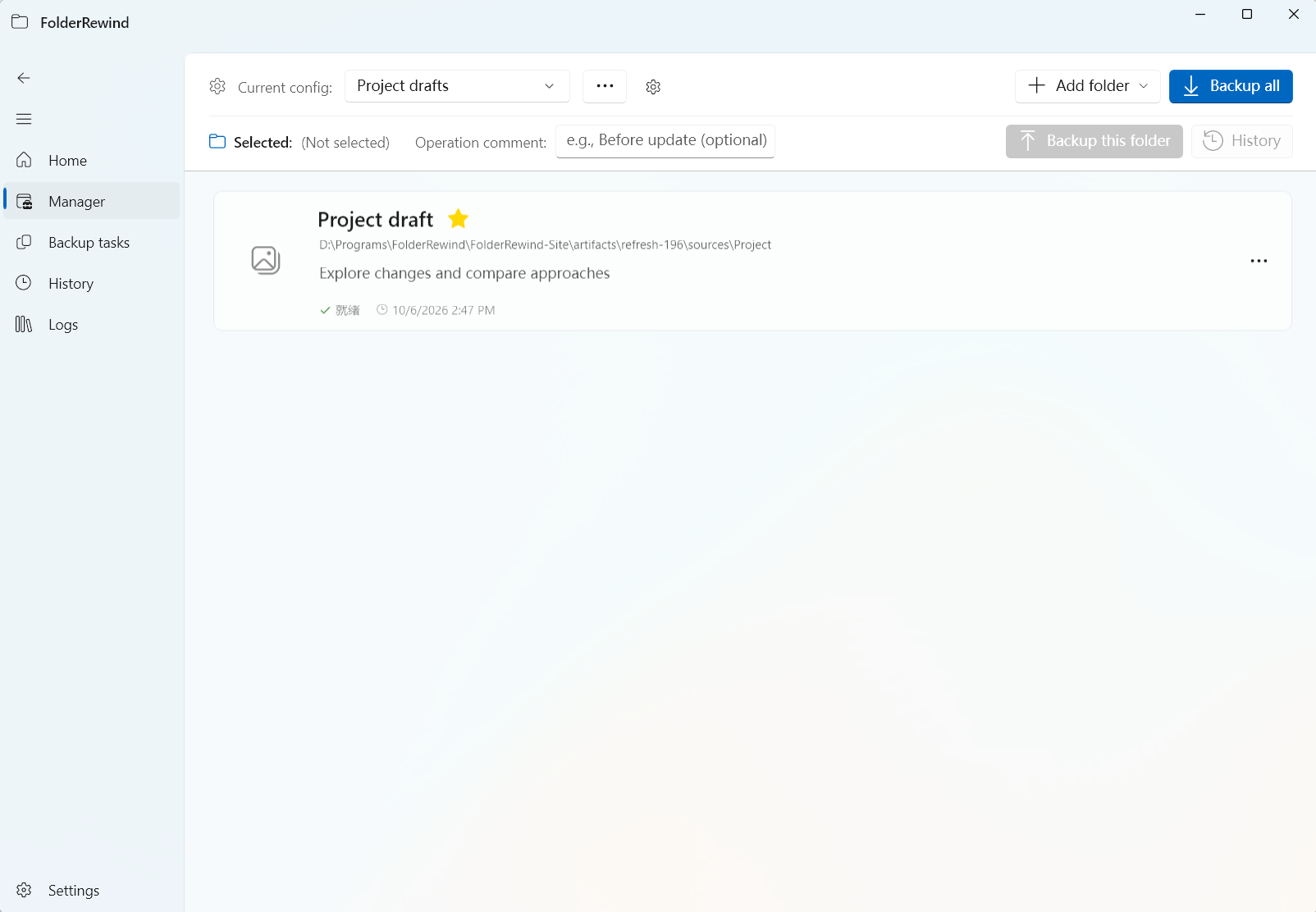
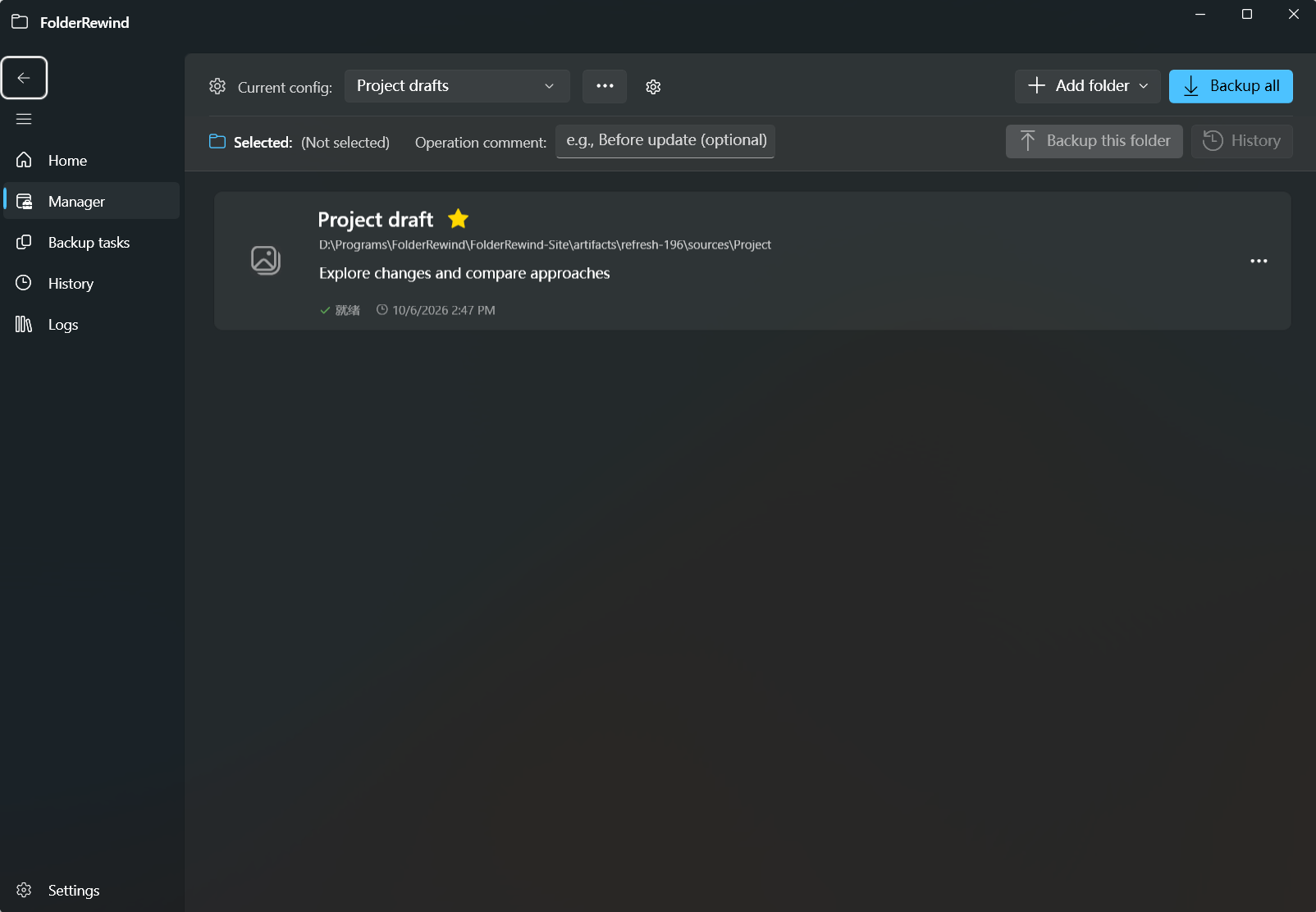
A demonstration source and its actions in management. Interface version: 1.9.6.
Add and organize sources
Use Add folder for one directory, subdirectories or plugin discovery results. Check that source and archive locations do not overlap. Add a useful name and description; favorite a source for quick access from home.
When editing its range, choose all content or relative inclusion rules and inspect the effective file preview. Names and paths can change, but another folder with the same name cannot replace source identity.
Rename a folder
Choose Rename in the source action menu. Review the proposed changes to source directories, archive locations, metadata and configuration references. Resolve naming conflicts before confirming.
The app attempts rollback on failure. If rollback also fails, check path and configuration consistency before another backup or restore. Existing cloud objects and immutable history are not all physically renamed with the local label. Avoid bulk archive renaming in File Explorer.
Rebind historical sources
When restoring or checking out history, an old source may lack a current path. Confirm its real location and retain the original stable identity when rebinding. Exporting files to another directory is separate from restoring that historical binding.
Check after saving
Wait for the save result, then check directories, ranges, automation targets and older versions. Failed configuration saves roll back. Fix permissions or disk issues before retrying; unsaved input is not an effective configuration.
Minecraft Java sources can open map preview from their action menu. Ordinary folders can use the mini window for everyday backups.