Creating Your First Configuration
This page covers MineBackup 1.16.2, a separate product. Use the commands, configuration and backup modes documented here. FolderRewind users should start with the current guide.
MineBackup organizes each backup workflow as an independent normal configuration. A configuration contains its source worlds, backup root, compression settings, backup mode, filters, retention policy, and optional cloud or hot-backup settings.
If you use multiple launchers or instances, keep each configuration tied to one save root so that same-named worlds cannot overwrite one another accidentally.
Step 1: Locate the save root
The save root is the parent directory containing the target world folders, not one world folder itself.
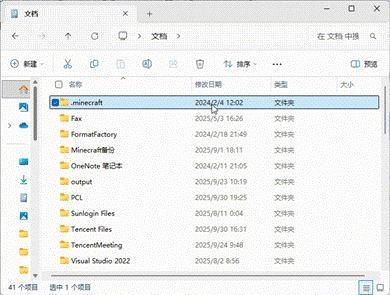
Common examples include:
- A Java Edition path such as
%APPDATA%\\.minecraft\\saves. - A Windows Bedrock path under a package directory ending in
games\\com.mojang\\minecraftWorlds, where the actual folder names may be opaque. - A third-party launcher path copied from its “Open save folder” action.
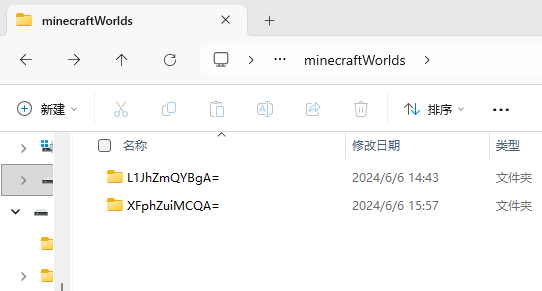
The wizard can select common Java/Bedrock paths automatically, or you can choose a folder manually. Any ordinary folder can also be managed as non-Minecraft data.
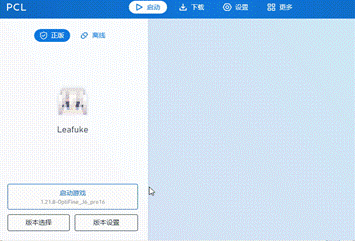
After selecting the root, scan it and confirm that at least one expected world appears with the correct name and description.
Step 2: Select a backup root
The backup root stores each world’s archives and internal metadata:
- Prefer another physical disk or an external device.
- Do not put the backup root inside the source world directory.
- Make sure the directory will remain writable and that retention settings will not remove the only recovery point.
MineBackup creates archive subdirectories by world and maintains Smart-chain state and records below the backup root’s _metadata area.
Step 3: Configure compression and performance
The configuration page can select:
- Archive format:
7zorzip. - Compression method:
LZMA2,Deflate,BZip2, orzstd. - Compression level: the valid range depends on the method; higher levels are usually slower.
- CPU thread count:
0lets the archive tool decide automatically. - Low-priority compression: reduces impact on a foreground game or other work.
Keep the default method and a medium level for the first run. Verify restore behavior before tuning size and performance.
Important configuration fields
| Field | Purpose |
|---|---|
saveRoot | Parent directory for worlds or source folders |
worlds | Names and descriptions of managed worlds |
backupPath | Root for archives and backup metadata |
zipPath | Optional user-selected compression executable; leave empty to probe |
zipFormat / zipMethod / zipLevel | Archive format, compression method, and level |
backupMode | Full, Smart, or Overwrite |
keepCount | Number of backups retained automatically; 0 means unlimited |
skipIfUnchanged | Skip duplicate backups when nothing changed |
maxSmartBackupsPerFull | Create a new Full baseline after this many Smart backups |
backupBefore | Create a safety backup before restoring |
blacklist | Exclude matching files or directories during backup |
snapshotPath | Snapshot directory used by hot backup |
Each configuration receives a stable ConfigId. External integration and portable configuration use it as the identity; do not rely on a reorderable list index.
Recommended first configuration
- Backup mode:
Full - Skip unchanged backups: enabled
- Retention: choose a value such as 30 according to available disk space
- Compression method and level: keep the defaults initially
- Backup before restore: recommended for production worlds
- Filters: start without complex rules
The aim is to establish a verifiable baseline. Enable Smart, automation, cloud archive, and hot backup one at a time afterward.
Multiple configurations and pending binding
Split configurations by launcher, modpack, purpose, or instance. For example, keep a production survival world separate from experimental worlds with rules that are easy to select correctly.
A configuration imported from cloud portable-config.json may be Pending Local Binding. Bind the local save root, backup root, and compression tool first. Until binding is complete, MineBackup blocks backup, restore, deletion, cloud writes, and automatic tasks.
Completion criteria
- The scan finds at least one correct world.
backupPathis writable and sensibly separated from the source.- The compression tool resolves successfully.
- The configuration survives an application restart.
- You can proceed to Your first backup.