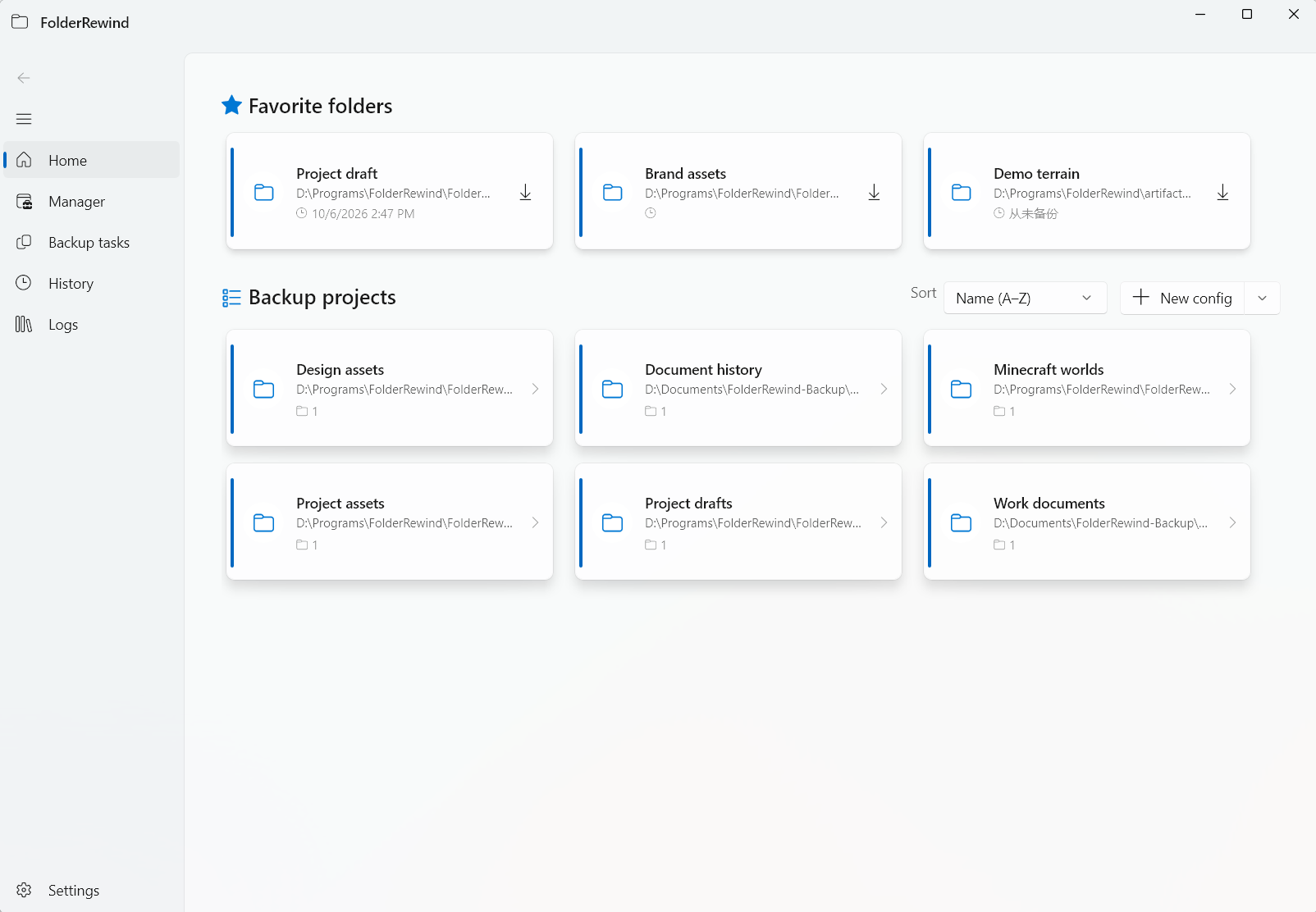
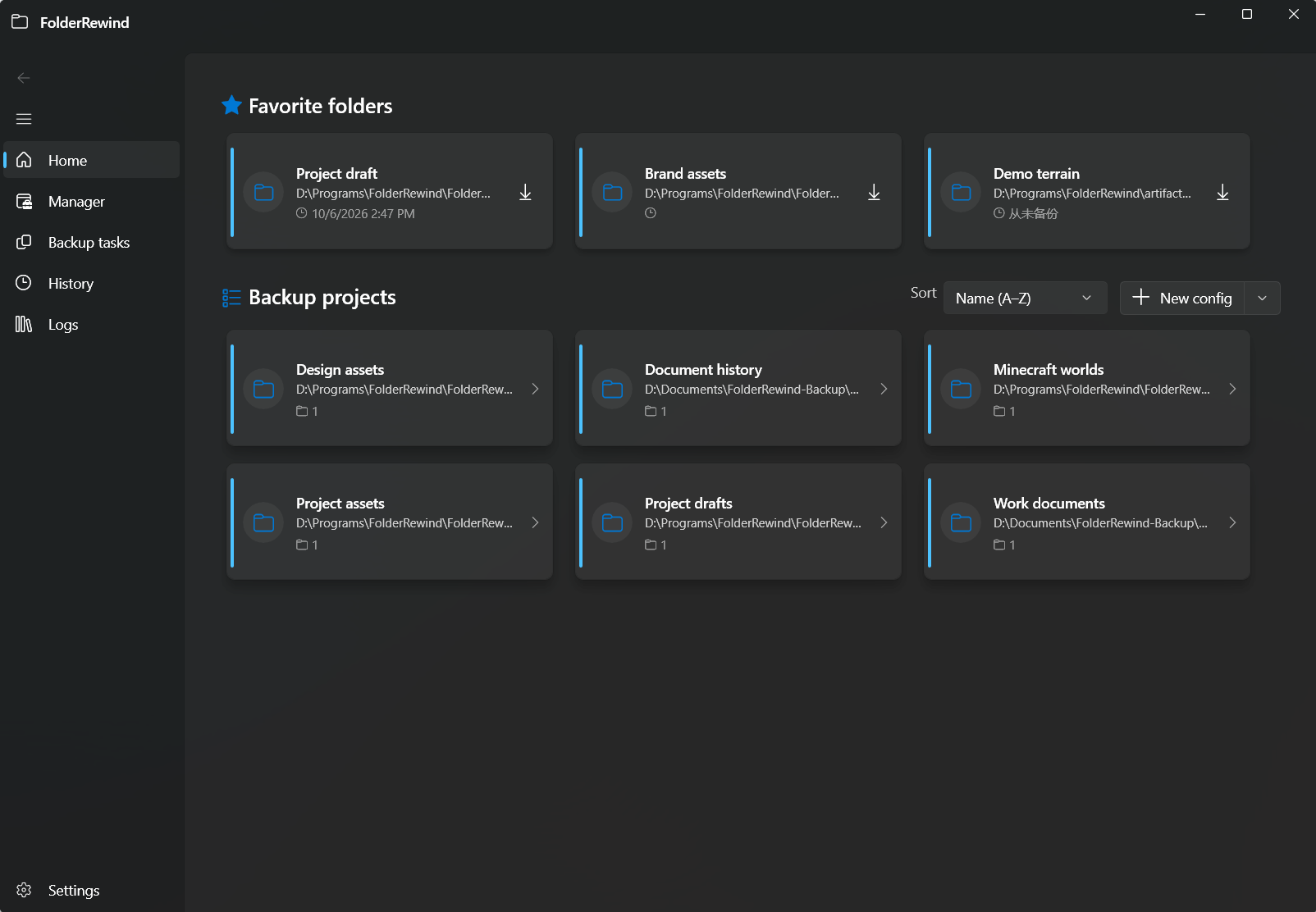
Quick Start

Welcome to FolderRewind — a modern backup tool for important files, project data, and game saves. FolderRewind is the successor to MineBackup.

:::caution Note English is a secondary language for this project — if you spot inaccuracies, contributions are welcome. :::

:::caution Upgrade recommendation If you are upgrading from an older version, read v1.8 Upgrade and Startup Recovery and run several backup-and-restore drills in a test directory before relying on the new version in production. :::

What FolderRewind now helps with

FolderRewind can help you:

  • create versioned, optionally encrypted backups with the 7-Zip engine
  • manage long-running history with smart incremental chains, chain-length control, and safe delete
  • use automatic core feature validation to verify that backup, restore, safe delete, and related workflows work correctly on the current machine
  • create and reuse config templates that preserve backup policy, filters, and path rules
  • use template sharing, importing, and official template search to deploy the same setup across devices or users
  • use cloud archive workflow (rclone) to sync local backup directories to OneDrive or other cloud storage
  • use settings search and runtime status display to find options faster and understand current app state
  • configure a GitHub mirror source for side-loaded builds to improve update checks and online template access
  • extend the app through the plugin system, especially for scenarios like Minecraft

Start in 3 steps

Step 1: Install

Install from Microsoft Store first, or see the Installation Guide for side-loading.

Do not install the Store build and the side-loaded offline build at the same time.

👉 Install from Microsoft Store

Step 2: Create a config

You now have two common paths:

  1. Click New Config and create a config manually
  2. Click Create from Template and apply an existing template directly

New Config dialog showing the config name, type, and icon options

If you already have a stable setup, you can also save the current config as a template in config settings.

Step 3: Run a first backup and validate

After opening the config management page:

  1. add the folders you want to protect, or confirm the folders found by the template
  2. run one manual backup
  3. immediately do a test restore, or run Automatic Core Feature Validation from Settings

This helps catch environment, path, permission, or toolchain issues early.

Recent capabilities

The FolderRewind 1.8 series brings backup control, migration, and remote integration into one safety chain:

  • Selected-region backup: Minecraft users can choose x1,z1,x2,z2 regions; restores force Overwrite.
  • Folder rename: migrate local folders, history identities, config references, and automation targets, with rollback attempts on failure.
  • Performance presets and advanced parameters: balance speed, thread count, and priority with automatic, lightweight, extra-light, or custom policies.
  • KnotLink Server v3 and parameterized protocol v2: let tools and plugins discover commands and coordinate backup workflows safely.
  • Safer restore: validate the backup first, then choose Clean or Overwrite according to normal or partial-backup rules without clearing unbacked data.

Before upgrading an older release or switching install channels, read v1.8 Upgrade and Startup Recovery. Minecraft users can start with the Selected-region Backup Guide and Folder Rename Guide.

Next steps