First Restore
Learn how to restore a folder to any historical state.
Upgrade notice
For configs upgraded from older versions, validate restore results in a test directory first before applying to production data.
Before you start
- You have completed First Backup and have at least one available backup record
Step 1: Enter the history page
- On the home page, click the target config card to enter the Config Management Page.
- In the folder list, select the folder you want to restore.
- Click the History button on the right side of the toolbar.
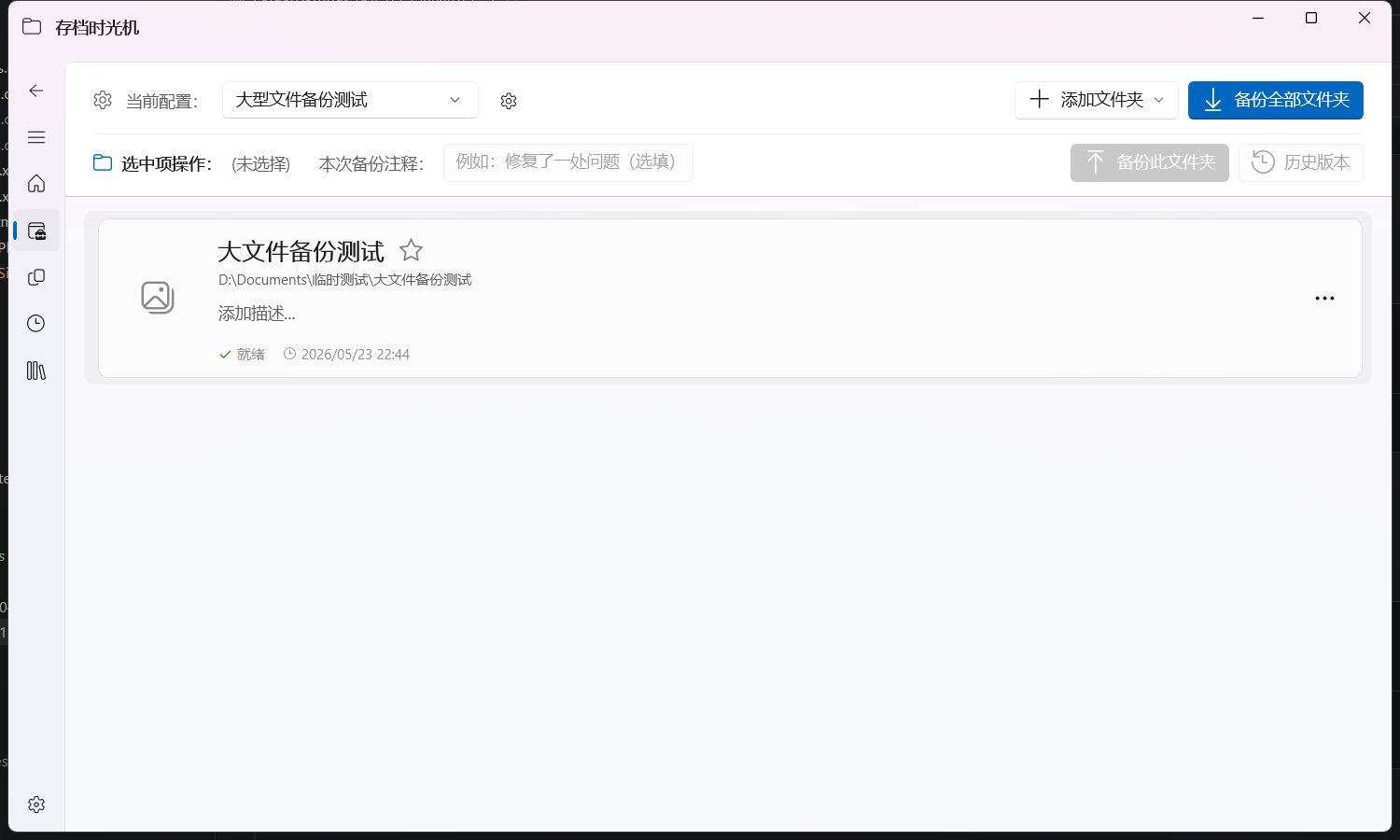
Step 2: Understand the history timeline
After entering the history page, you will see a timeline view similar to a Git commit log:
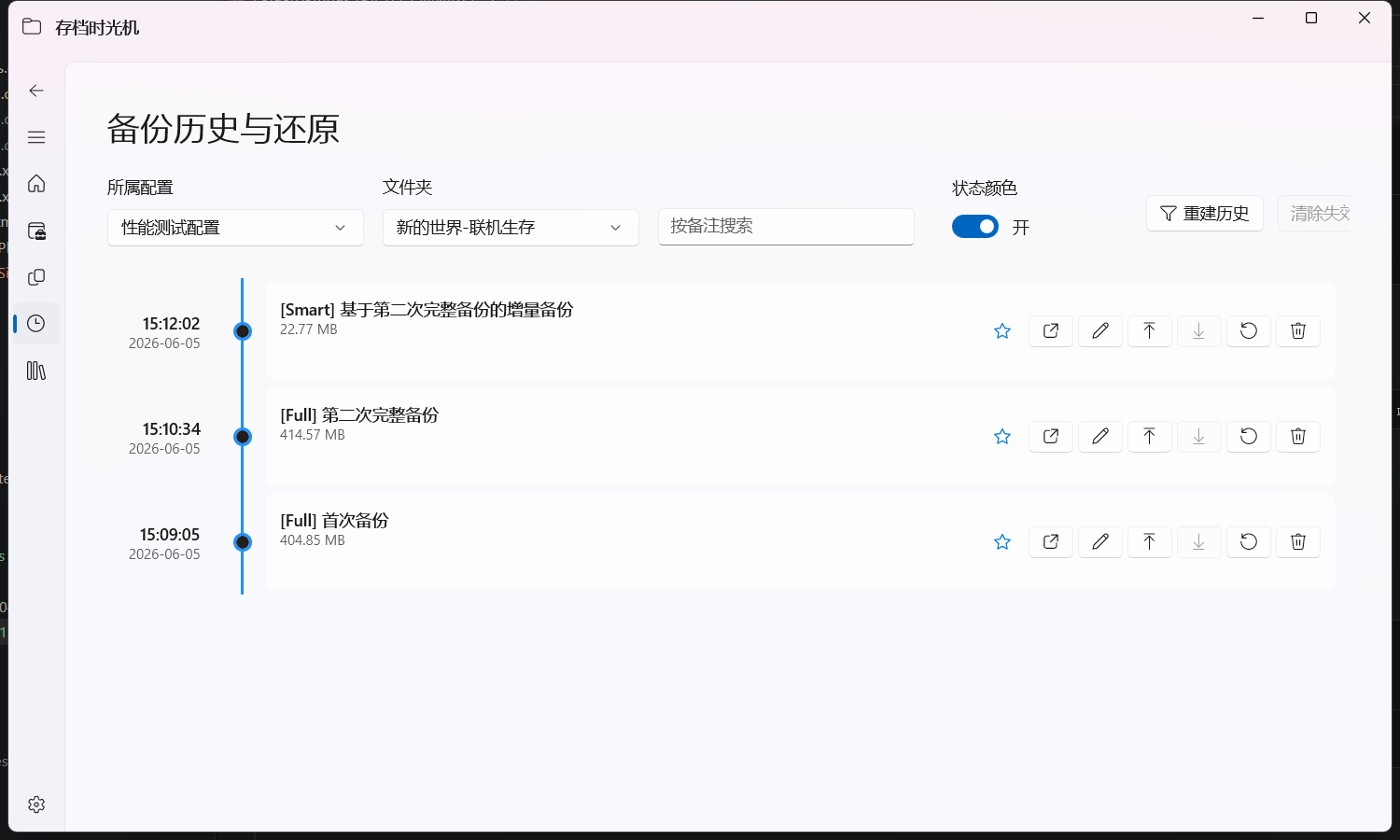
Layout overview:
- Left: backup date and time
- Middle: vertical connecting line + colored dot nodes indicating backup status
- Right: backup info cards containing file size, notes, and action buttons
Node color meanings:
- Blue: normal backup record
- Sky blue: cloud-only copy (local file no longer exists)
- Orange-red: backup file missing
- Gold: backup marked as "important"
Step 3: Select a restore point
Find the point in time you want to restore to. Use the filter bar at the top to narrow the range:
- Config selection: switch between different configs
- Folder selection: switch between different folders under the same config
- Notes search: filter backup records by keyword
Step 4: Run the restore
- On the target backup card, click the Restore button.
- In the confirmation dialog, choose a restore mode:
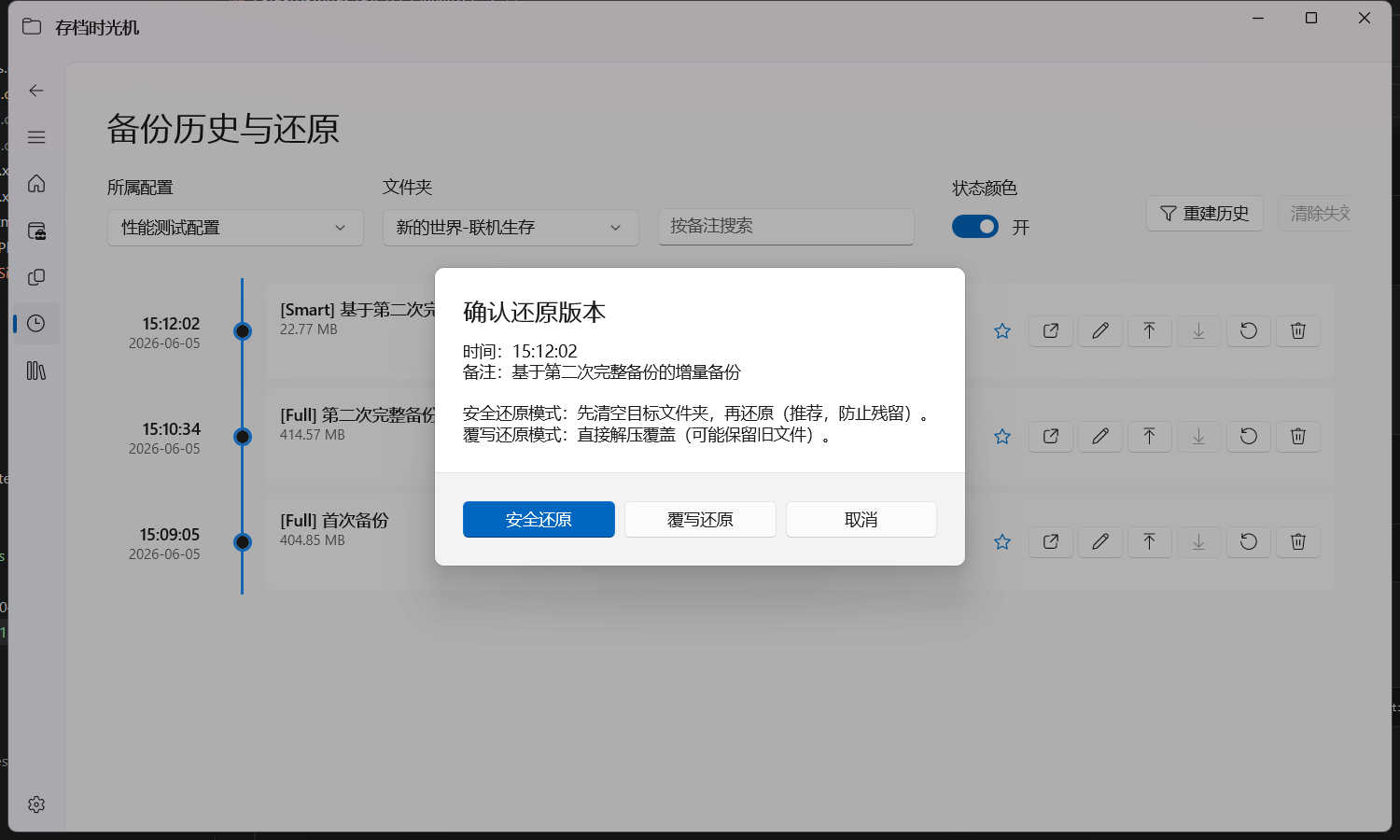
- Safe Restore (clean target): cleans the target directory first, then restores the backup content. Recommended.
- If Safe Restore is enabled, the system creates a snapshot before cleaning and automatically rolls back if the restore fails.
- Overwrite Restore: overwrites same-name files directly without deleting extra files in the target directory.
- May leave old files behind.
- Click confirm and wait for the restore to complete.
Encrypted configs
If the config has encryption enabled, a password prompt will appear before the restore. Enter the password set when the backup was created.
Important
- Safe Restore mode deletes existing content in the target directory (except files in the restore whitelist).
- If unsure, enable Auto backup before restore and Safe Restore in config settings first.
Step 5: Verify the restore result
Open the target directory and check whether the files have been restored to the expected state.
Recommended safety settings
In Config Settings > Restore Policy, it is recommended to enable:
| Setting | Purpose |
|---|---|
| Auto backup before restore | Allows rolling back to the pre-restore state if something goes wrong |
| Safe Restore | Automatically rolls back if Safe Restore mode fails |
| Restore Whitelist | Preserves specified files/folders during Safe Restore |
Troubleshooting
| Problem | Possible cause | Solution |
|---|---|---|
| Backup file missing | Archive was manually deleted or moved | Run "Clear Invalid" to clean up invalid records |
| Password verification failed | Incorrect password entered | Confirm the encryption password for this config |
| Restore failed midway | Insufficient disk space or files in use | Check disk space and close programs using the files |
| Unexpected result after restore | Overwrite Restore mode was used by mistake | Re-run with Safe Restore |
Next step
- Backup Modes -- Learn about different backup strategies
- Minecraft Guide -- Scenario-specific restore workflow for Minecraft players