Backup Modes
FolderRewind provides three core backup modes powered by the 7-Zip engine: Full, Smart Incremental, and Overwrite.
If you upgraded from an older version, revalidate backup chains and restore results with test data before using them in production.
Quick recommendation
- Beginner default: Full Backup + enable "Skip when no changes"
- Frequent daily use: Smart Incremental + chain limit + safe delete
- Temporary rolling state: Overwrite (keep only the latest archive)
Mode comparison
| Mode | Description | Advantage | Best for |
|---|---|---|---|
| Full | Creates a complete new archive every time | Simple and stable restore | Beginners, milestones |
| Smart Incremental | Packs only changed files and builds an improved incremental chain | Faster, saves space | Large folders with frequent backups |
| Overwrite | Updates the latest archive instead of creating many history files | Minimal storage, simple workflow | Temporary sync or cache-like folders |
"Smart Incremental" in product wording corresponds to Incremental/Smart behavior in code.
Across major updates, chain generation, truncation, and restore behavior may change, so upgraded configs should always be revalidated once.
How to configure
- Open Config Settings for the target config.
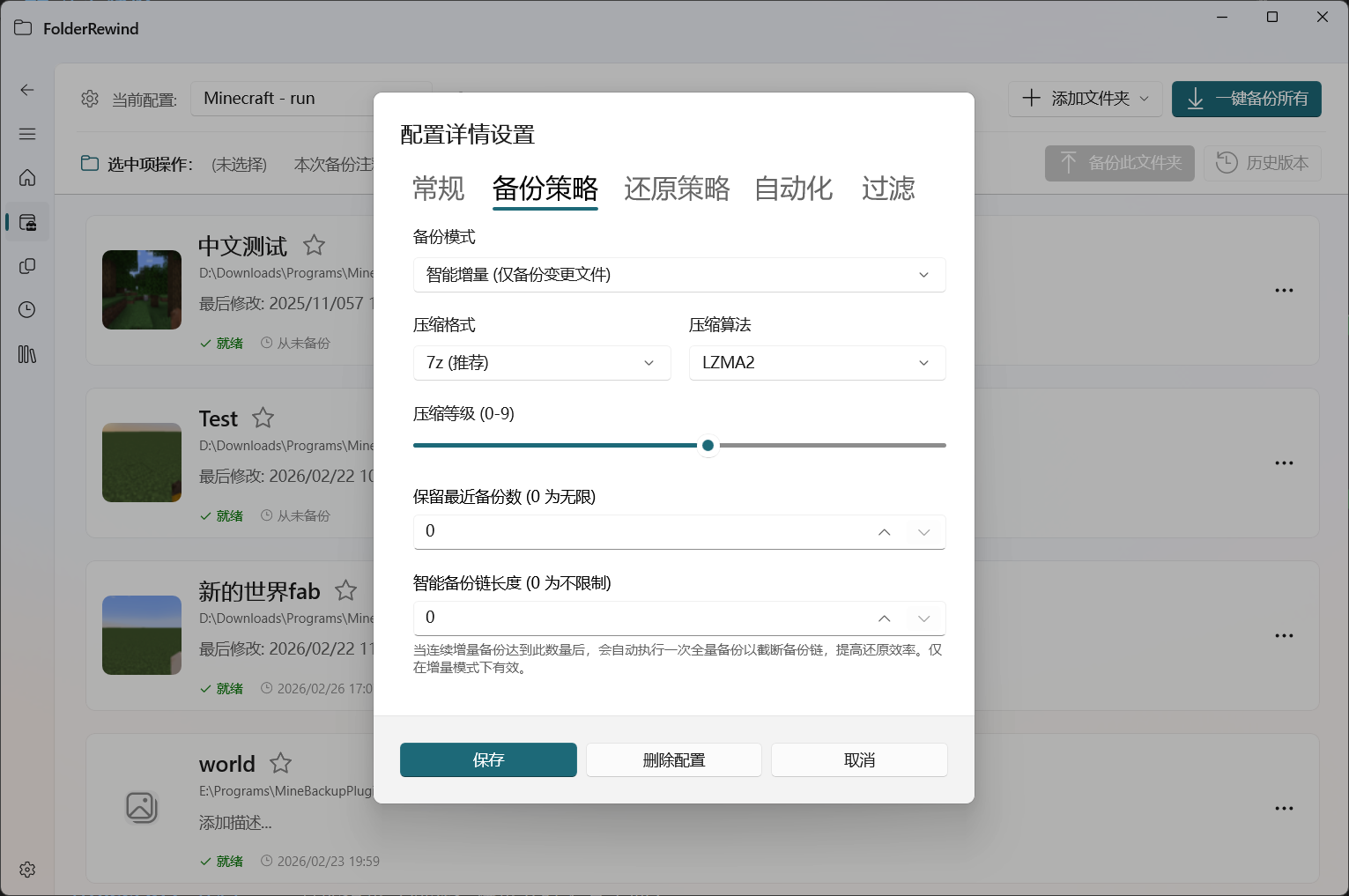
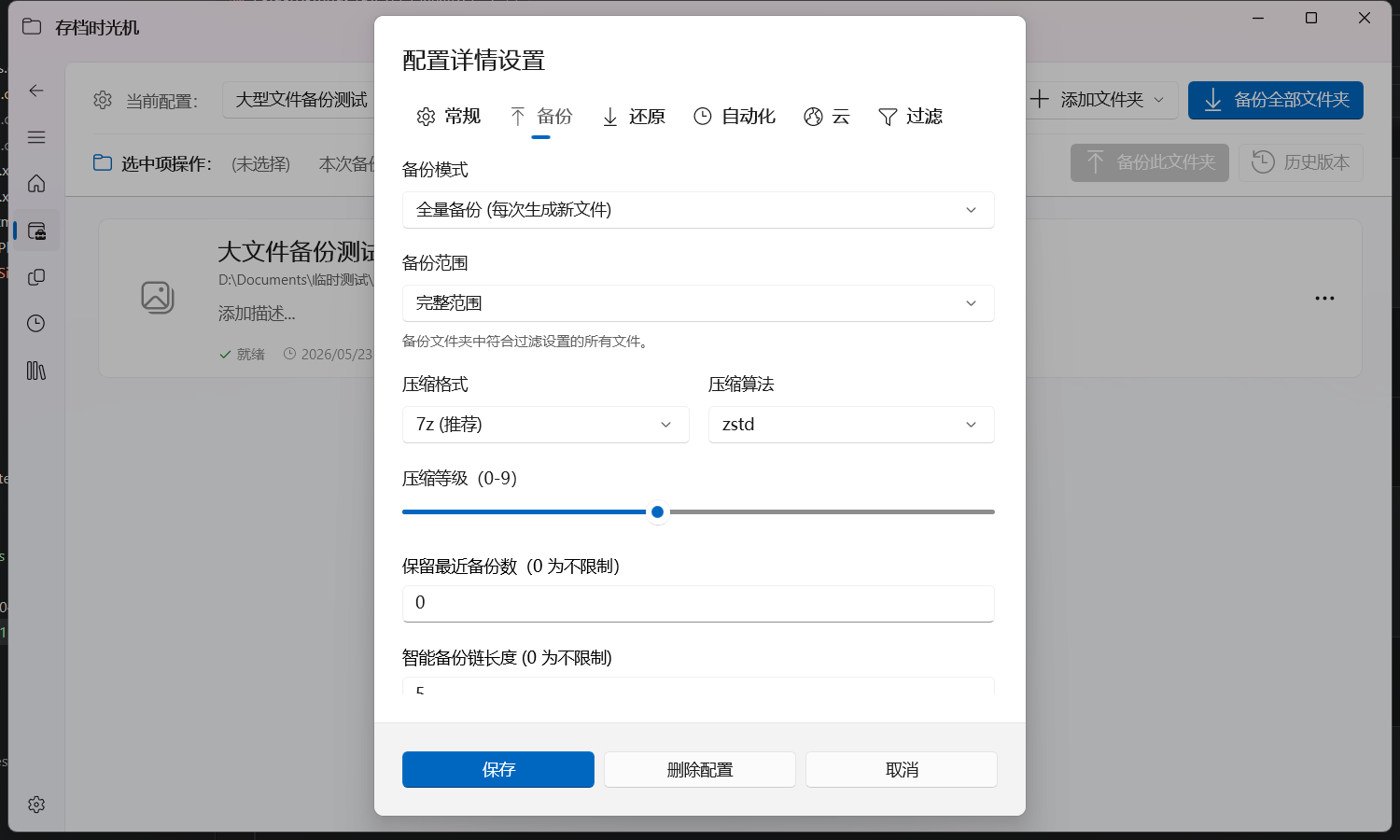
- Go to Backup Policy.
- Select mode from Backup Mode:
- Full backup (new file each run)
- Smart incremental (changed files only)
- Overwrite backup (update latest backup)
- Save and run one manual backup for validation.
Choosing tips
- Minecraft saves: Smart Incremental (saves more space for large, frequently backed up folders)
- Work docs/projects: Smart Incremental or Full (based on disk and restore preference)
- Important archives: Full + encrypted config
- Temporary/cache folders: Overwrite
Key settings strongly related to mode
In Config Settings -> Backup Policy, also check:
- Skip backup when no changes: avoids creating meaningless backups.
- Keep latest backup count:
0means unlimited. - Smart chain length limit: only applies to Smart Incremental; triggers a Full backup to truncate the chain when the threshold is reached.
Chain truncation behavior:
When the number of backups in a smart incremental chain reaches MaxSmartBackupsPerFull (default 5), the next backup automatically switches to Full, creating a new baseline. The old chain is not deleted, but new backups no longer depend on it.
Benefits:
-
Controls the length of the restore chain, avoiding the need to merge too many incremental packages during restore
-
Limits the blast radius if an incremental chain breaks
-
Safe delete: helps avoid broken restore chains during cleanup of incremental archives.
-
Remote forced full backup: in automation/integration scenarios, you can temporarily bypass the current mode and run one Full backup via a remote command.
Compression and performance
FolderRewind supports 7z/zip compression with tunable level, method, and threads:
- Compression level: higher = smaller size but slower speed.
- CPU threads:
0means automatic; limit threads if performance is insufficient. - File-type rules: use lower compression for already-compressed files like
*.zip/*.mp4to reduce processing time.- Note: enabling file-type rules automatically disables 7z solid compression, because solid compression requires all files to use the same compression settings, while file-type rules allow different levels for different files.
- Low-priority compression: enabling
RunCompressionAtLowPrioritylowers the CPU priority of the compression process, so it does not interfere with other tasks running during backup.
Starter presets
- General office files: Full + skip-no-change + keep 30
- Dev projects: Smart Incremental + chain limit 20 + safe delete + keep 60
- Large game saves: Smart Incremental + skip-no-change + automation + periodic restore validation