Filter Rules
FolderRewind has two filter groups:
- Blacklist: affects backup stage (matched items are excluded)
- Restore Whitelist: affects Clean restore stage (matched items are preserved during cleanup)
Where to configure
- Open the target config.
- Click Config Settings.
- Configure:
- Blacklist in the Filters section
- Restore Whitelist in the Restore Policy section
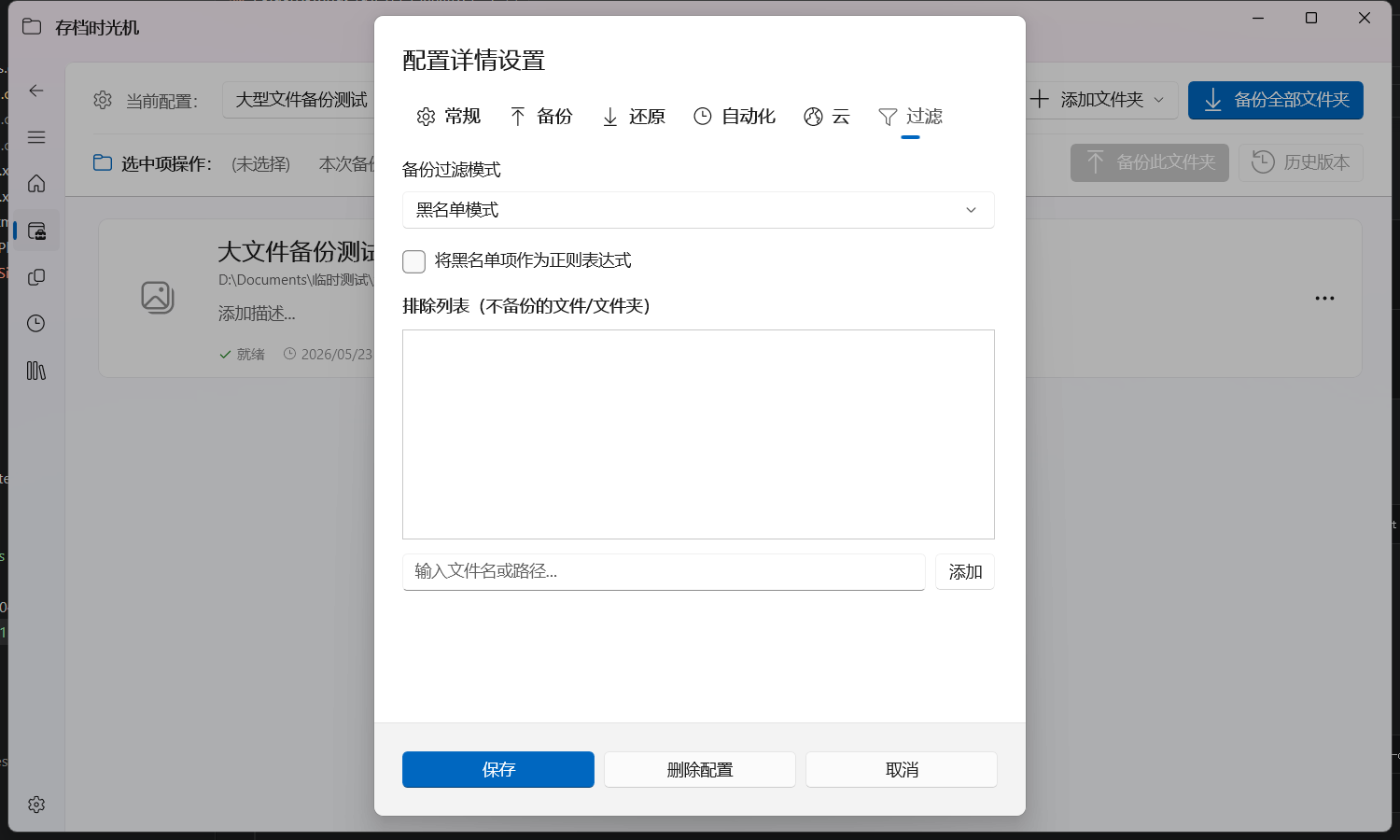
Three filter lists
FolderRewind has three independent filter lists, each active at a different stage:
| List | Config location | Active stage | Purpose |
|---|---|---|---|
| Blacklist | Filters -> Blacklist | During backup | Exclude matched files/folders |
| Backup Whitelist | Filters -> Whitelist | During backup (whitelist mode only) | Include only matched files/folders |
| Restore Whitelist | Restore Policy -> Restore Whitelist | During Clean restore | Preserve matched items during target directory cleanup |
Note: Blacklist and Backup Whitelist are mutually exclusive (switched via filter mode). Restore Whitelist is independent and can be configured in either backup filter mode.
Backup filter mode
FolderRewind supports two backup filter modes, switched in Config Settings -> Filters:
| Mode | Description | Best for |
|---|---|---|
| Blacklist mode (default) | Exclude matched files, back up everything else | Most scenarios; exclude cache/logs/temp files |
| Whitelist mode | Back up only matched files, exclude everything else | When you only want to back up specific file types |
Use blacklist mode if you only want to exclude a few files. Use whitelist mode if you only want to back up a few specific files.
Blacklist (backup stage)
Blacklist rules apply during file scan. Common use cases include cache, logs, and temporary files.
In v1.6.1, matching behavior for blacklist/whitelist was tightened to reduce overly broad matches. Prefer writing more precise rules.
Supported matching methods
- Exact filename match (for example
latest.log) - Path-contains match (for example
node_modules) - Wildcards (
*,?) - Regex rules (
regex:prefix, with regex option enabled)
Examples
*.tmpcacheregex:^logs/.*\\.txt$
Whitelist mode examples
After switching to whitelist mode, only files matching the rules will be backed up.
Typical use cases:
- Back up only save data:
*.dat,*.json - Back up only specific directories:
saves,worlds - Back up only config files:
*.yml,*.yaml,*.toml
Example rules:
*.dat*.jsonsavesregex:^saves/[^/]+/level\.dat$
Restore Whitelist (Clean restore stage)
During Clean Restore, FolderRewind cleans the target directory first. Items in whitelist are preserved during cleanup.
v1.6.1 also fixes the issue where full-path whitelist entries could fail to apply. Full-path rules are now reliable for precise preservation.
Typical use cases
- Preserve local config files
- Preserve machine-specific environment files
Examples
.env.localuser-settings.jsonscreenshots
Best practices
- Run one manual backup and verify results after adding rules.
- Start with precise rules, then broaden if needed.
- Validate regex on a small scope before production use.
- Avoid a single broad rule that effectively covers an entire parent directory.
- For critical preserved items, prefer full-path rules to reduce ambiguity.
FAQ
Regex rule is not working
Confirm:
- Rule starts with
regex: - "Use regex" is enabled
- Expression is valid
Old files remain after restore
Check restore mode first. Only Clean restore runs "cleanup + whitelist preserve" logic.