Automation
FolderRewind supports multiple automation modes for each config:
- interval mode
- schedule mode (by month/day/hour/minute entries)
- on-startup trigger
- selected backup targets
- condition-based backup mode
- stop after repeated no-change runs
Before you begin
- At least one folder has been added to this config.
- A writable backup target path is configured.
- You have run at least one manual backup successfully.
Where to configure
- Open the target config from the home page.
- Click Config Settings.
- Open the Automation tab.
- Enable Auto Backup.
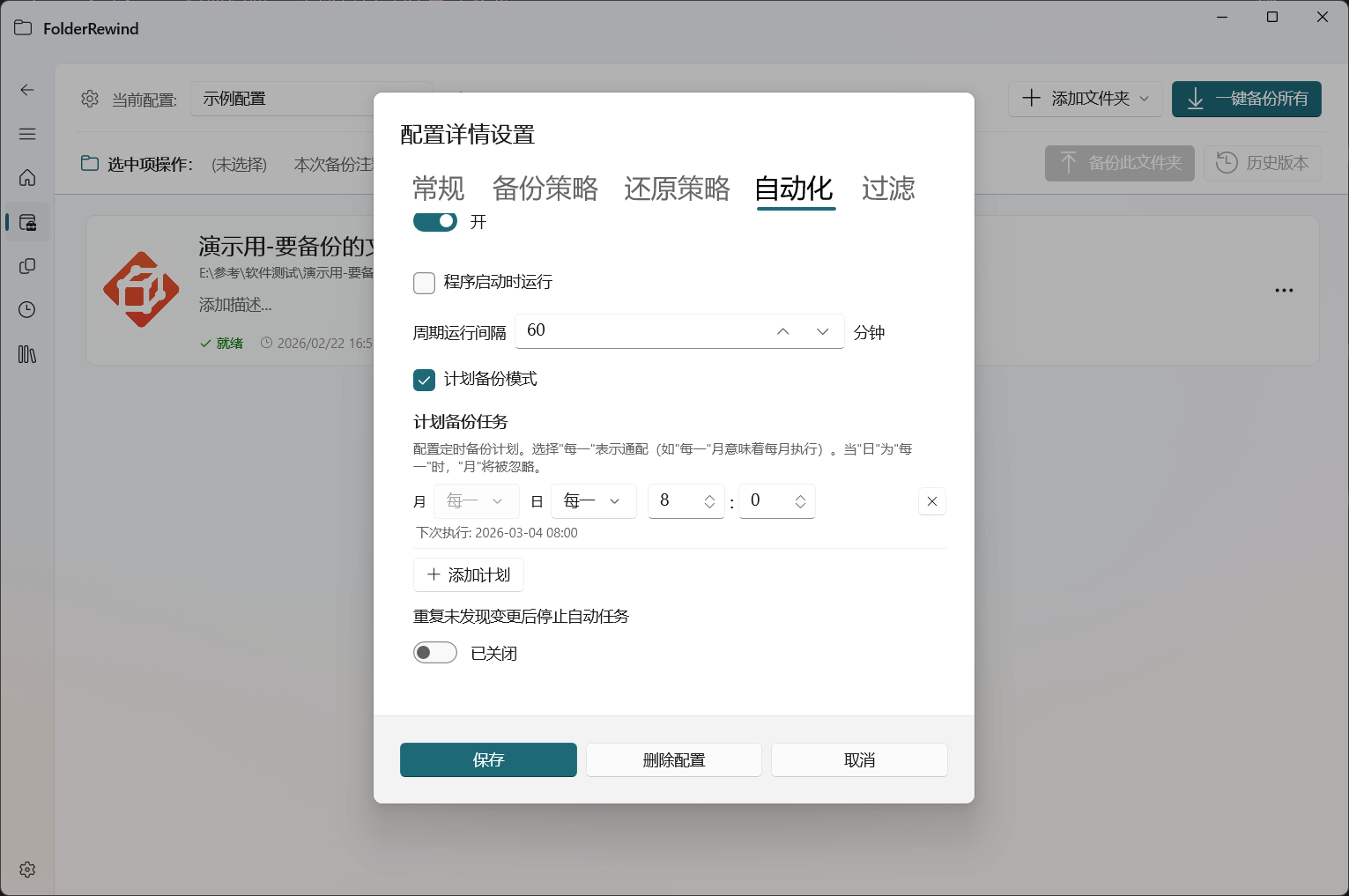
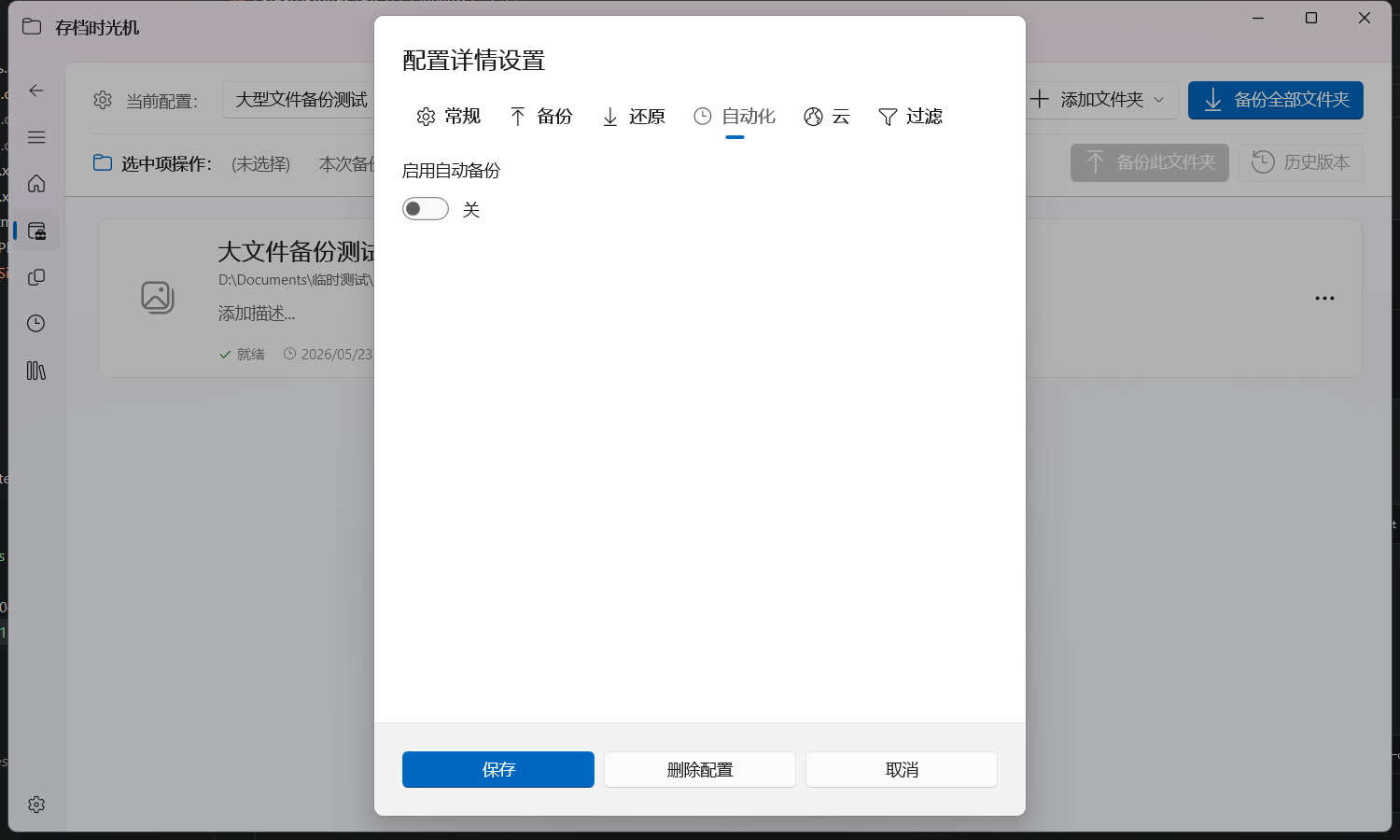
Automation modes
Interval backup
Runs backup at a fixed minute interval.
- Setting:
Run interval (minutes) - Range:
1 ~ 10080minutes - Recommendation: Start with
30or60minutes
Scheduled backup
When Scheduled Mode is enabled, you can add multiple schedule entries.
Each entry can set:
- Month (or "Every month")
- Day (or "Every day")
- Hour and minute
Special values:
- Month set to
0(or "Every month"): runs every month - Day set to
0(or "Every day"): runs every day
The system checks every 60 seconds whether any schedule entry should trigger.
Examples:
- Every day at
02:00 - Every month on day
1at03:30 - Day
1and day15as separate entries
On-startup backup
Enable "Run on app startup" to trigger one backup when the app starts.
- Use case: Create a snapshot when you open the app for the first time each day
- Recommendation: Use together with interval mode
Selected auto-backup targets (v1.7.0)
Starting with v1.7.0, auto backup no longer needs to run against the entire config every time. You can choose specific targets.
Useful scenarios:
- one config contains multiple source folders, but only some need high-frequency protection
- game saves and screenshots are in one config, but only save folders need aggressive automation
Recommended setup:
- split folders by importance (core data, low-priority data, temporary data)
- run auto tasks only for core folders
- use lower-frequency schedule/manual backups for low-priority folders
This reduces task pressure and makes troubleshooting easier.
Condition-based backup mode (v1.7.0)
Condition mode triggers backups when specific conditions are met, instead of relying only on fixed intervals.
Typical examples:
- auto backup after game exit
- trigger backup after a critical process finishes
Best practice is to combine condition mode with interval/schedule:
- condition mode captures critical moments
- interval/schedule mode acts as periodic safety net
If you are a Minecraft user, consider setting "trigger after exiting world" as the top priority condition.
Trigger mechanism details:
Condition-based backup works by monitoring a file's lock state. The system checks the target file's status every 10 seconds:
- When a file transitions from "locked" to "unlocked", one auto backup is triggered
- If the file remains unlocked, it will not trigger repeatedly
Configuration:
- Condition type (
ConditionType): currently supportsFileUnlocked(triggers when file is unlocked) - Monitor file path (
ConditionRelativePath): the path of the file to monitor, relative to the source folder
Typical configuration example (Minecraft saves):
- Condition type: FileUnlocked
- Monitor file path:
level.dat(Minecraft locks this file while the game is running and releases it on exit)
Stop after repeated no-change runs
You can enable Stop auto tasks after repeated no-change detections:
- Enable the option.
- Set threshold
N.
Behavior:
- Auto backup is turned off automatically when no-change is detected
Ntimes in a row. - The counter resets after a change is detected.
Recommended combinations
- On-startup + every 30 minutes
- On-startup + daily scheduled backup at 22:00
- Interval + stop after repeated no-change
- Condition-based backup (after game exit) + daily 03:00 schedule
- Condition-based backup + selected critical targets
Suggested presets
General documents
- Interval:
60minutes - On-startup backup: Enabled
- Stop after no-change: Enabled, threshold
5
Minecraft saves
- Interval:
15~30minutes - On-startup backup: Enabled
- Optional nightly schedule (for example
03:00)
Retention policy (important)
Automation creates many backups. Configure retention in backup policy:
- Set Keep latest backup count.
- If using smart incremental mode, also set a max chain length.
Troubleshooting
- Task not triggered: check whether auto backup is still enabled for this config.
- Scheduled mode seems invalid: verify hour/minute values in each schedule entry.
- Auto tasks stopped unexpectedly: likely caused by repeated no-change stop; re-enable auto backup manually.
- Condition trigger did not run: confirm the condition actually happened and the related task is still enabled.
- Backup scope is unexpected: verify whether full-config mode was selected by mistake or critical targets were not selected.