History Timeline
The History Timeline lets you inspect folder backup evolution and run restore actions.
How to open
- Enter the target config management page.
- Select a folder.
- Click History Versions.
Page layout
The History Timeline uses a visual layout similar to a Git commit log:
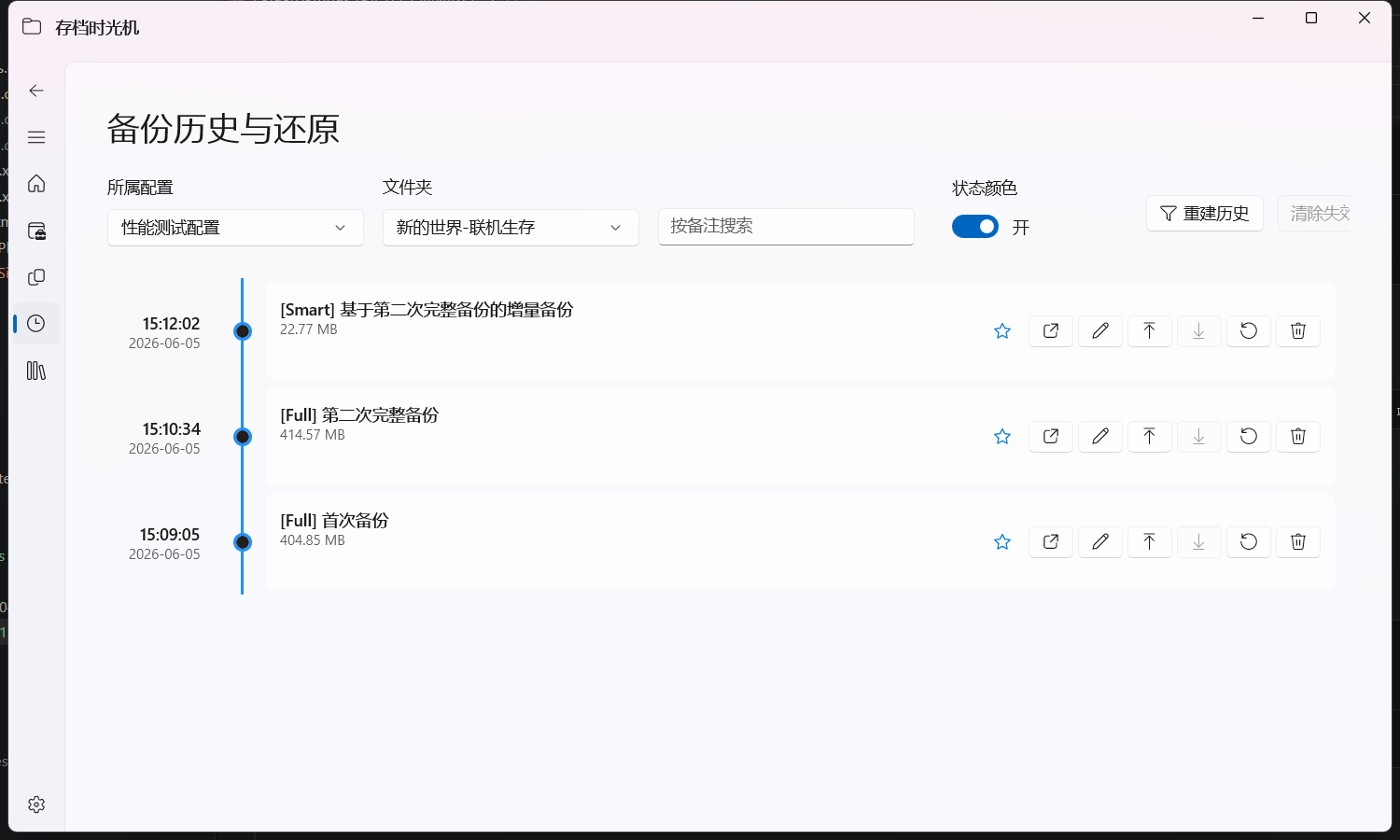
Three-column layout:
| Column | Content | Description |
|---|---|---|
| Left | Time display | Backup date and time |
| Center | Vertical line + dot nodes | Connecting lines represent time continuity; dot color indicates status |
| Right | Info card | Backup type, file size, notes, and action buttons |
Node color meanings:
| Color | Status | Description |
|---|---|---|
| Blue | Normal | Local backup file exists and is intact |
| Light blue | Cloud only | Local file is missing, but a cloud copy exists |
| Orange-red | Missing | Backup file has been lost or deleted |
| Gold | Important | Marked as "Important" by the user (starred) |
Info card action buttons:
- Star: mark/unmark as important
- View: locate backup file in File Explorer
- Edit notes: modify backup notes
- Upload/Download: cloud operations
- Restore: recover files from this backup
- Delete: delete this backup record and/or file
What you can do
- View time, type, notes, and file size per entry
- Search by note keywords
- Mark/unmark important backups (star)
- Edit notes
- Locate backup file in File Explorer
- Restore or delete history entries
- Upload a single history entry to cloud
- Download a single history entry from cloud back to local backup storage
Filtering and visualization
The filter bar at the top of the page provides the following controls:
-
Config selector: dropdown to switch between different configs
-
Folder selector: dropdown to switch between folders under the same config
-
Note search: input field to filter backup records by keyword
-
Status color toggle: toggle whether to display different colors by status
-
Switch history scope by config and folder
-
Filter results by note keywords
-
Enable status color display:
- Normal
- Small-file warning
- Missing-file warning
Recommended restore flow
- Click Restore on the target entry.
- Choose mode:
- Clean Restore
- Overwrite Restore
- Wait for completion and verify results.
Management tips
- Star key milestone backups to prevent accidental cleanup.
- Use notes like "change purpose + date" for better traceability.
- Prefer deleting history entries inside FolderRewind instead of manually deleting incremental archives in File Explorer.
- Run "Clear invalid entries" periodically to remove entries whose archives no longer exist.
Cloud copy operations
Each history row exposes two cloud actions:
- Upload to cloud
- Download from cloud
Behavior summary:
- Upload is enabled only when the local archive exists.
- Download is enabled only when the entry has cloud-copy metadata.
- A cloud icon indicates cloud copy availability; "cloud only" means local archive is missing but cloud copy exists.
- In legacy custom-command mode, history-page cloud actions are unavailable (rclone mode only).
Recommended sequence:
- For cloud-only entries, download from cloud first.
- Restore after local archive is available.
If metadata is reported as partial, archive transfer may still have succeeded. Usually it means archive is present while metadata is incomplete.
Safe Delete
When you delete a backup that belongs to a smart incremental chain, FolderRewind can enable Safe Delete to merge required content into the successor backup before removing the current one, reducing the chance of a broken restore chain.
Recommendations:
- Keep Safe Delete enabled for long-lived Smart Incremental configs.
- Verify restore results before deleting key milestones.
- For bulk cleanup, prefer the app workflow instead of deleting archives manually.
Rebuild History
If history records are accidentally removed, migration is incomplete, or only backup archives remain, you can use Rebuild History to regenerate history entries from backup files.
Recommended prerequisites:
- Keep standard filename format (
[Full/Smart/Overwrite][timestamp]...) - Keep directory layout as
DestinationPath/<folder-name>/
See: Backup File Specification
FAQ
"View" says file not found
History entry still exists, but archive was moved or deleted. Run "Clear invalid entries" first.
Restore result is not expected
Verify restore point and restore mode first, then check restore whitelist settings. If the config was upgraded from an older version, go back to test data and validate the chain again.